Blog

  • Are Microphone And Speaker Cables The Same?

    Microphones and speakers are surprisingly similar when you consider the way they work, but they both require specialized cables to function. This leads many to wonder if speaker cables and microphone cables are the same, if they are similar, or if they are completely different from one another. Are microphone and speaker cables the same?

    Microphone and speaker cables are not the same. Microphone cables are balanced XLR cables with two live wires and a shielded ground wire for delivering balanced audio signals. Speaker cables are ungrounded, thicker gauge wires that deliver speaker-level audio to properly drive speakers for output. 
    Are Microphone And Speaker Cables The Same

    All audio hardware and equipment require the right cable to function. This is simply part of using this type of equipment. Without the right cable, no speaker or microphone will work. Let’s explore the cable used for speakers and microphones to identify their unique features, determine their similarities, and find out how they can be used well. 

    Microphone Cables Vs. Speaker Cables

    As we have already stated, every piece of audio equipment requires the right cable for it to function correctly. All audio equipment, including microphones and speakers, require the right type of signal to be sent to or from them, and the right cable is necessary to perform these functions. 

    For example, various types of speakers can receive audio signals of different levels. Some speakers can receive line-level audio, while others receive amplified audio signals. Each speaker type requires cables that can deliver this type of audio without interference. 

    Microphones are input devices rather than output devices like speakers. This means that microphones require cables that enable them to input audio into a system. Some microphones require electrical power to function, and so must be able to send audio into a system and receive power with the same cable. 

    All of this reinforces the fact that these audio devices must be used with the right type of cable to work properly. 

    With that in mind, let’s explore the cables used for microphones and those used for speakers to learn more about them and identify their differences. 

    Microphone Cables

    Microphone cables use a type of cable called an XLR cable. This cable is a specialized audio that is multi-functional in the world of audio and can be used for multiple purposes.

    These cables are balanced audio cables, meaning they can be used over long distances and still produce high-quality, interference, and noise-free audio signals. 

    These cables are capable of this because they are made with two live inner wires, one with a positive signal and the other with a negative. These cables also have a grounded core that runs alongside the two live connections. 

    The positive and negative signal wires in an XLR cable produce opposing signal forms, which means that any interference or noise that is accumulated or picked up along the length of the cable is canceled out upon signal delivery. 

    The ground in the cable is shielded, which enables the cable to also carry an electrical current for powering microphones. This ground wire also provides a means for collected or accumulated interference to be dispersed outside the signal chain of the cable. 

    These cables are ideal for microphones, as they can send and receive information. They are quiet, balanced, and interference-free, can be used well over long distances, and have good grounding while also being very durable. 

    Microphone cables always have three-pin XLR connectors, with a female XLR connector at one end and a male XLR connector at the other. 

    These cables can be used to send mic-level audio to mixers, microphone preamps, amplifiers, audio interfaces, or recording devices. They can also send power to microphones that require it by safely sending phantom power from a mixer or interface to the microphone. 

    Speaker Cables

    Speaker cables are also a specialized cable type, and they are made to function with speakers in particular. 

    There are two main types of speakers, those that have built-in amplifiers and those that do not. A speaker without a built-in amp is a passive speaker, and an amplified speaker is an active speaker. 

    Most speakers require special speaker cables with no grounding or shielding but much heavier-gauge wire cores. These cables need to carry audio that is of a much higher strength than most other audio cables and is so thick that they do not usually require shielding as they can easily mitigate external interference. 

    These cables are designed to carry audio signals that can be used by the speakers and can either send line-level audio or speaker-level audio, depending on what the speakers require. 

    Speakers with their own built-in amplifiers do not need to use these cables, as they can amplify the audio they receive, allowing them to simply use regular XLR cables to input audio into the speaker. 

    The type of cable used for a speaker depends on the type of signal that the speaker requires. So long as the cable can safely deliver the audio at the correct levels for the speaker, it can be used for the speaker without issues. 

    Are Microphone And Speaker Cables The Same?

    Microphones use XLR cables almost exclusively, and some speakers use XLR cables as well. Does this mean that XLR and microphone cables could be considered the same thing?

    The reality is that while some speakers do use XLR cables, a speaker cable is not the same thing as a microphone or XLR cable. An XLR cable is a cable type on its own, and so is a speaker cable. 

    Speaker cables are a type of cable and are, therefore, not the same as a microphone cable. 

    Some speaker cables can appear to be similar to XLR cables, as older speakers use a connector that is compatible with XLR connectors. Some older models still use a cable that resembles an XLR from the outside, but they are not XLR cables at all. 

    Using a microphone cable in lieu of a speaker cable and vice versa can result in catastrophic equipment damage and failure, or it may simply not work with the hardware at all. 

    These cables are not the same and cannot be treated as such. Microphone cables and XLR cables are not the same cable type. 

    The instances when an XLR cable is used for a speaker is when the speaker is compatible with an XLR cable and does not require a speaker cable. 

    Can You Use An XLR Cable For A Speaker?

    Let’s dive a little deeper into using XLR cables with speakers to help clear up any confusion that may have been caused at this point. 

    XLR cables are audio cables used to transmit a balanced audio signal at line level, mic level, or instrument level, depending on their application. These cables are capable of all of these signal levels and can be used to send audio to or from any device that can receive or send this type of audio. 

    Some speakers are equipped with line-level inputs and have built-in amplifiers to increase the signal strength before transducing it into sound. 

    In this instance, a microphone or XLR cable can be used with a speaker, as all the cable is doing is sending balanced audio into the speaker. 

    When a speaker cable is used, the cable transmits the audio signal and a small electrical current, which is usually amplified before it reaches the speaker. 

    This signal type necessitates the use of a speaker cable and will not function with an XLR cable. 

    When an XLR cable is used with a speaker, it is only when the speaker is active, has onboard amplification, and only needs the XLR as an audio input. These speakers do not require power from the cables, nor do they need an amplified audio signal. 

    These speakers can usually receive audio from any sound source so long as the speaker has a compatible input port. 

    The choice of an XLR to deliver audio is simply practical and a way of sending good-quality, clear audio to the speaker. 

    A speaker that requires a speaker cable to function cannot be operated with a microphone or XLR cable at all. 

    Check out: XLR Vs. TRS

    Why Do Microphones Need Specialized Cables?

    Microphones are designed to work with balanced XLR microphone cables and do not function well when forced to operate with other cables. This leads many to wonder why microphones require this type of cable and why they cannot use another form of cable.

    XLR cables are used for microphones almost exclusively due to the nature of the signal that microphones produce. The microphone level signal is very weak and very quiet. 

    This type of signal is not strong at all, and it is very susceptible to external interference in the form of radio frequencies, electromagnetic frequencies, and other kinds of noise as well. 

    The basic form of how microphones work is they have an internal diaphragm that vibrates at the same frequency as sound waves that come in contact with it, but these vibrations are very small and very difficult to transmit. 

    All of this means that microphones require a cable that can mitigate any noise and signal interference, as well as provide a small amount of power to carry the signal as far as possible. 

    Some microphones have diaphragms that are so thin and fragile that they require external power to operate safely, so the cable that the microphone use must also be able to deliver electrical current to the microphone without damaging it. 

    These cables must do this while still transmitting the audio signal from the mic simultaneously. 

    The microphone or XLR cable is ideal for this device, then, as there are no other cables that possess all of these features. 

    The ability of XLR cables to send balanced audio, mitigate interference, supply power, and carry signals a long distance makes them the perfect cable for use with microphones. 

    These features are also why the XLR cable has become the industry standard for almost all audio delivery, and in some instances, for power delivery as well. 

    Why Do Speakers Need Specialized Cables?

    As microphones require specialized cables, so do speakers and almost all other audio devices. 

    The reason why speakers require specialized cables is simply that speakers require either speaker-level audio or line-level audio. 

    Speakers that require an input of speaker-level audio require that audio be amplified in order to output it as sound. A speaker that requires audio at this level will function with a weaker signal from another cable type. 

    Speaker cables that deliver speaker-level audio need to be very thick to carry the voltage that the signal requires. This signal is very strong compared to other audio signals and must be strong enough to drive the speaker heads in the speaker units to accurately replicate the audio sent from the audio system. 

    Speakers that require line-level audio need to receive audio that is powerful enough to be amplified, having already been through a preamp, or they need a very clear and balanced audio signal. 

    This is only achieved through the use of specialized cables, and therefore speakers must use these cables to function well. 

    Conclusion

    Microphone and speaker cables are not the same. Speaker and microphone cables are cable types with different properties, functions, and uses. Speaker cables and microphone cables are not interchangeable. Some speakers do use the same cables as microphones, but these are not speaker cables. 

    Speaker cables and XLR microphone cables must be used in the proper context, or the hardware that they are used with may be damaged. These cables are required to deliver audio of the correct signal strength, level, and quality for the hardware to be used well. 

    References

    • https://www.leadsdirect.co.uk/knowledge-base/are-xlr-microphone-leads-and-xlr-speaker-leads-exactly-the-same-thing/
    • https://www.cambridgeaudio.com/usa/en/blog/speaker-cables
    • https://www.techwalla.com/articles/difference-between-xlr-low-z-microphone-cables
    • https://www.avsforum.com/threads/xlr-vs-speaker-wire-will-it-make-a-difference.1512572/
    • https://www.quora.com/Is-there-a-difference-between-XLR-mic-cable-and-XLR-speaker-cable
    Was this article helpful?
    YesNo

  • Are Microphones Input Or Output?

    Microphones are used in a variety of ways, and there are many different types of microphones, but the way the microphone is built leads some people to wonder if microphones are input devices or output devices. Microphones are capable of producing sound in the right circumstance, so are they considered input or output?

    Microphones are input devices. A microphone is always used to input audio signals into a system. Microphones are designed to receive external sound, replicate it, and send it into the system that the device is plugged into. A microphone diaphragm can produce sound but will be damaged if it does.  

    Are Microphones Input Or Output

    The construction of a microphone and the way the device works is very simple, but its multi-functional construction can be used in various ways. For example, the same technology and mechanisms that make a microphone work are also responsible for the function of a speaker, which is why so many people find themselves wondering if mics are input or output devices. 

    Are Microphones Input Or Output Devices?

    Microphones are used in many ways, and various types of microphones have different uses, but are these devices considered inputs or outputs when used in an audio system?

    Microphones are input devices. A microphone is always used to introduce an audio signal into a system, be it audio or electronic system. 

    The construction of a microphone means that it is technically capable of producing a sound if a current is pushed into it in the right way, but no microphone is used in this way. 

    A microphone is almost always used as an input device. Sound from an instrument, voice or some other source of sound is projected into the microphone, and the mic changes the sound energy into electrical energy that can be input into the system that the mic is plugged into. 

    An output source is defined as a device that sends audio out, either as a digital or electrical signal or as sound. An output device must always receive a signal from an input device to have something to send. A microphone is an example of such an input device.

    Even though some microphones can create a sound in the same way that a speaker does, they are incredibly inefficient and ineffective for this purpose, as they are designed to input sound rather than output it. 

    For this reason, even though they can output sound, all microphones are used as input devices. Everyone who uses a microphone uses it as an input device, and every microphone is built to be an input device. 

    What Makes A Microphone An Input Device?

    We have established that microphones are input devices, and they are almost always used in this way, even though it is possible for a microphone to generate an audio frequency if used in a certain way. 

    However, it is important to know what defines a microphone as an input device and what makes it an input device, even if it is technically possible to use it as an output device. 

    To understand why a microphone is an input device, we must first understand how a microphone works. This will highlight the fact that it is not designed to be an output device and is always intended to input sound into a system. 

    The basic mechanics of how a microphone works is that the device contains a small membrane or diaphragm that vibrates when sound hits it. 

    This diaphragm is either suspended within the mic or attached to the chassis in such a way that it allows it to vibrate at nearly precisely the same frequency as the sound that hits it. 

    This diaphragm is, therefore, the component within the mic that senses the sound. This sensor is electrified with a small electrical current supplied by the device that the microphone is plugged into. 

    This tiny electric current flowing through the diaphragm allows the frequencies that the sensor receives to be transmitted electrically into the system that the microphone is a part of. 

    When the diaphragm in the microphone is placed in the path of a sound wave, the sound causes it to vibrate at the same frequency. 

    That frequency is then received by the electronics within the microphone and transduced into an electrical signal that can be transmitted down the cable that is plugged into the mic, sending the audio signal into the system. 

    Therefore, a microphone only receives a signal and sends it into the system it is used in. No signal is sent from the system back to the microphone to be output. The signal is rather sent into the system from the mic to be output elsewhere. 

    All of this demonstrates that microphones are always functionally used as input devices, as they receive sound from their environment, transmit it into a system, and the system uses that signal to output the sound from another device. 

    Check out: Best ASMR Microphone

    Are Microphones Ever Output Devices?

    The construction of a microphone is technically very similar to a speaker. A speaker also has an internal diaphragm that vibrates at the frequency of a sound, but that vibration is used to output sound rather than receive sound. 

    This leads many people to wonder if a microphone can ever be used as an output device, as the mechanism is technically the same. 

    It is technically true that a microphone can output sound. For this reason, some people determine microphones to be output and input devices simultaneously, but the reality is that microphones are only functionally used as input devices. 

    Some microphones have been used in experiments to output sound at a very low volume, and it is true that microphones can unintentionally generate a sound if they are used in the wrong way. 

    Some microphones will generate an audible tone if an electrical signal of the right strength is passed through the internal diaphragm of the mic. 

    This electrical energy causes the diaphragm to vibrate, which causes the mic to make a sound. This sound can be interpreted as interference, as the microphone is designed to send whatever frequencies are generated by the diaphragm into the system that is plugged into. 

    Therefore, any sound generated by the microphone is then input into the greater audio system that the mic is plugged into. 

    This can be a serious problem, as it can cause intense feedback in the system and even damage sensitive equipment. Any microphone that unintentionally generates sound is therefore considered faulty and needs to be repaired to be useful. 

    This means that even though a microphone can technically produce a sound, these devices are never used in this way and are only ever used as input devices. 

    Microphones that produce a sound are only ever output devices if something in them breaks or if they are designed to do so for experimental purposes. 

    Why Are Microphones Not Considered Output Devices?

    We have learned that microphones can produce audio frequencies if they are faulty or if they are designed to do so, but why are microphones never used as output devices for practical purposes?

    The answer here is somewhat simple. Even though a microphone has the same basic technology and components as a speaker, a microphone is very small, and the components within it are very small and very sensitive. 

    This means that even if a microphone is used to output a frequency, the sound it produces would be so quiet that it would be practically inaudible and functionally useless. If the sound increases in frequency to become audible, it is highly likely to cause irreparable damage to the internal components of the microphone. 

    This again highlights the fact that microphones are input devices, and they cannot be effectively used to output audio, even though they may have the functionality. 

    Microphones are input devices and should only ever be used for their intended purpose, or the device is highly likely to be damaged beyond repair.

    Check out: Best Microphone Isolation Shields

    How Do Microphones Input A Signal Into A System?

    Microphones are input devices that receive audio and send it to audio or electrical systems. Microphones are very successful at this and are used in a wide range of applications to this end. 

    However, it can be confusing when learning that microphones send audio as an electrical signal into systems. This may lead you to wonder how microphones even input audio into a system at all. 

    Microphones input signals into a system by receiving sound frequencies from the environment around it by means of a diaphragm or membrane that vibrates when hit by sound waves. This diaphragm vibrates at the same frequency as the sound and is, therefore, able to transmit the same frequency into the system. 

    This audio frequency causes the diaphragm to vibrate so quickly that it generates an electric current, which can then be sent down an electrical wire into the output jack of the microphone, down a cable, and into the system that it is plugged into. 

    Some microphones have diaphragms that are too thin to generate an electrical signal when they vibrate, and these have a mechanism that powers the diaphragm with an external electrical current known as ‘phantom power.’ This electrical current enables the diaphragm to transmit the frequencies it receives and input them into the system. 

    The audio signal sent by the microphone is very weak and therefore needs to be amplified for the system to use it. The signal is therefore transmitted from the microphone into a microphone preamp or into a mixer or console that has a built-in microphone preamp. 

    This preamp amplifies the audio signal to usable levels and pushes the signal to the rest of the system, where it can be used. 

    This signal is now an electrical signal input into the system by the microphone. It can be used to output the audio that the microphone received or to record the audio that the microphone input into the system. 

    Check out: How to Adjust Microphone Sensitivity

    How Effective Are Microphones As input Devices?

    Microphones are only functional as input devices and are only ever used practically as input devices, but how effective are microphones as input devices? Does a microphone effectively capture, replicate, and send audio into a system? How reliable are microphones as input devices?

    Microphones function at varying degrees of effectiveness and reliability. Every microphone functions in basically the same way and uses the same fundamental hardware and technology, but the efficiency and effectiveness of a microphone are determined by how sensitive the internal hardware of the device is. 

    Some microphones are significantly more sensitive than others, and some are only sensitive enough to perceive specific frequencies. 

    Certain microphone models are designed to pick up the smallest frequencies and the weakest sound waves, while others are made to only receive very loud sounds and intense frequencies. 

    However, with that said, most microphones are very effective at what they do. If a microphone is designed to be used for singing, it is likely to be very good at receiving and transmitting the frequencies that the human voice can output. 

    If a microphone is designed for an instrument, such as an electric guitar, the internal hardware is tuned to make the mic very good at receiving and replicating the frequencies generated by the instrument. 

    Microphones are very good at what they do, but the effectiveness and reliability of an individual microphone are determined by what it is designed to do, how well it is made, and what it is used for. 

    You cannot expect a cheap mic that is designed to pick up a spoken voice to do well in recording a trumpet. It simply will not work well, but you can use a mic that is designed for brass instruments to pick up audio from the trumpet, and it will be very effective. 

    Conclusion

    Microphones are input devices. These devices are never used as output devices outside of experiments and only output sound in regular use if they are faulty. Every microphone in practical applications is always an input device. 

    Microphones are very effective for introducing sound into a system and make very good input devices for audio. Every microphone is designed differently, but every microphone is an input device. 

    References

    • https://www.tutorialspoint.com/computer_fundamentals/computer_input_devices.htm
    • https://mynewmicrophone.com/are-microphones-input-or-output-devices/
    • https://www.musicianwave.com/is-a-microphone-input-or-output-device/
    • https://www.quora.com/Why-is-a-microphone-both-an-input-and-output-device
    • https://www.quora.com/Is-a-microphone-an-input-or-an-output-device
    • https://www.javatpoint.com/microphone


    Was this article helpful?
    YesNo

  • How Do I Turn My Microphone On? 🎙️

    You must set up your new microphone correctly to work on your computer. Without setting up the microphone, it will likely not work, and in case you are lucky that it works, it will not work to the best of its ability, which will include problems such as denied access in some applications. 

    To enable your new microphone in windows, ensure that you connect your microphone to the PC. Then select Start > Settings > System > Sound, and choose the microphone under the input tab of the sound settings. 

    How Do I Test The Microphone On My Laptop 1 1

    Enabling your new microphone is a relatively simple process, although it may vary slightly from one operating system to another. Moreso, you may have other issues like faulty drivers that could stop your microphone from working. This article details a step-by-step guide on enabling your new microphone under several circumstances.

    How To Enable Your New Microphone on Windows

    Before you enable your new microphone in windows, ensure that you properly connect it to your PC. Wired microphones like the Blue Yeti microphones have either one of these two types of connectors: mini-plug or USB connectors

    Connecting a Mini-Plug to a PC

    If you have a PC with a microphone jack, then a microphone with a mini-plug should go all the way into the PC’s microphone jack. Plugging the mini-plug all the way is necessary to ensure that your microphone works properly. If you do not fully plug it in, this might create a loose connection that will stop the microphone from working.

    Connecting a Mini-Plug to a Desktop

    Desktop computers generally have three or more mini-plug ports, with just one or two serving as a microphone jack. In cases where the mini-plug ports are colored, pink is typically the color that denotes a microphone jack. 

    These mini-plug ports will also have icons beside them to denote each port’s functionality, and the microphone jack will have a microphone icon beside it. The other microphone jack is at the front of the computer’s case. These are the only ports into which you should insert the microphone if it has a mini-plug. 

    When connecting the mini-plug to a desktop, you must also ensure that you fully plug it in to avoid loose connections that will stop the microphone from connecting. 

    Connecting a USB Microphone

    To connect a USB microphone to your PC, plug it into any USB ports on your computer; so that the computer can automatically detect the microphone and install the necessary drivers. 

    At times, connecting to some USB ports does not work. This connection failure is more likely if you are on a desktop PC and try to connect to the front USB ports. When this happens, change the microphone to the back USB ports, as these will usually connect directly to the motherboard.

    Connect Your Microphone Using Bluetooth

    For Bluetooth microphones like the Rode wireless go II, you will need to connect your microphone to the PC via Bluetooth for wireless microphones. This connection requires first turning on Bluetooth on both devices. Here’s what you need to do on the PC.

    1. Click on the windows start icon
    2. Then in the pop-up menu, click on settings
    3. Under settings, click on devices
    4. Click on the “Bluetooth & other devices” option in the devices panel.
    5. Then turn on Bluetooth.
    6. When Bluetooth is activated, click on the “Add Bluetooth or other devices” option.
    7. Choose Bluetooth and wait for the name of your microphone to appear. 
    8. Click on the device’s name (when it appears) to connect your microphone to the PC. 

    Select Your New Microphone in the Software Settings

    After ensuring that you have properly plugged in your microphone, the next step is to select that microphone as the default option. 

    Many PCs will rely on their internal microphones as their default options. Connecting your new external microphone will not override this default setting; unless you do it manually.

    The steps vary slightly depending on your system type, but here is the general approach.

    Set the New Microphone as the Default

    1. Open the control panel: Do this by pressing the Windows key + X buttons on your keyboard and selecting the control panel option from the pop-up menu. If you cannot find the control panel option after pressing the Windows Key + X buttons, access the control panel by typing the phrase “control panel” in the search bar on the right of your taskbar. 
    2. Click on sound settings: Under the control panel option, click on “Hardware and Sound,” then click on “Sound.” 
    3. Navigate to the recording tab: Under the sound window, select the recording tab to see all the recording devices connected to your computer. 
    4. Select the new microphone: From the list of all recording devices, select your new microphone and set it as the default microphone by clicking on the option at the bottom of the microphone list.

    Allow Apps To Access Your Microphone

    You may connect your microphone to your PC and enable it correctly, and it still won’t work. The first thing to do is check if your microphone is muted on your application. Ensure the microphone is on, then test again. 

    If the microphone still doesn’t work, this failure may be due to restricted access, where some apps have permission to access the microphone while others do not. Another possibility is that no app may be allowed to access the microphone. 

    Here is how your fix that.

    1. Click the windows start icon and select the settings options in the pop-up menu.
    2. In the settings panel, scroll down and click on “Privacy.”
    3. In the privacy panel, scroll through the menu on the left until you find the “Microphone” option. 
    4. If you cannot find the “Microphone” option, search for the microphone option in the search bar at the top of the privacy panel. 
    5. When you find the Microphone option, click on it to open the microphone settings. 
    6. Make sure your microphone access for your device is “turned on.” If not, click the “Change” button to turn it on. When turned on, you should see the statement just above the button that states, “Microphone access for this device is on.” 
    7. Next, go to the section that allows apps to access your microphone. Under this option, make sure that it is “turned on.” If it is, you will see the word “on” written just beside it. The “on” status means that apps have permission to access your microphone by default, but it doesn’t mean they are all given that permission. Some apps will not have permission. 
    8. You should manually go through the list of apps that have or don’t have access to the microphone and manually turn them off or on. Ensure that the app you are using or intend to use with your microphone has access to the microphone. 
    9. Finally, ensure that desktop apps are also allowed to access your microphone.

    Change Your Microphone Levels

    If your microphone levels are low or off, there could be other reasons, but Microsoft will not be able to hear you through that microphone unless you increase your microphone levels. 

    1. Go to the control panel and select “Hardware and Sound” from the list.
    2. Under the hardware and sound panel, click on “Sound.”
    3. Then click on the “Recording” table to show you all the available microphones.
    4. Double-click on the microphone you want to enable to open its properties window.
    5. Under the properties panel, click on the levels tab.
    6. You can then adjust the microphone volume to a higher figure.
    7. If the microphone is too quiet, you can give it an extra boost by increasing the boost level, which will make it louder.

    Enable Your New Microphone by Updating the Drivers

    Sometimes, your microphone is disabled even after making the proper connections, setting new defaults, and granting all the necessary permissions. In this case, your computer lacks the correct or up-to-date sound drivers.

    Finding the right driver software for your system can be complicated. It’s best to use free tools such as Driver Easy. You can automatically download and install the drivers with driver-easy, but this will cost you. I prefer the manual option since you will only worry about the installation process, as the driver-easy software does much of the work for you for free. 

    Update Drivers With Driver Easy

    1. To update your drivers using driver-easy, begin by downloading a free version from their website.
    2. Once the download is complete, click on the download file to initiate an installation of driver-easy software onto your machine. 
    3. When the installation is complete, open up the driver-easy software and click “start scan.” This process will allow driver-easy to scan all the drivers on your PC and determine whether they are up-to-date, not up-to-date, or missing.
    4. Once the scan is complete, scroll to look for the sound drivers. If they are not up-to-date or missing, you will see an option just to the right side prompting you to download those drivers. 
    5. Proceed to download the drivers and ignore the option to have them automatically installed for you since that option is easy yet will cost you money to have the software do it for you. 
    6. When the download finishes, click on the down arrow at the side of the download button. Then select the “View file location” option. 
    7. You will go to a file location local to your computer. This file location and address is where your download for the driver is stored.  
    8. Double-click to highlight the address of the downloaded file, which could look something like “This PC>Downloads>Sound-drivers.” Copy that address
    9. Next, go to the search box on your taskbar and type in “Device manager.” Click on the device manager option to access where all the drivers are stored. 
    10. If you have an outdated sound driver, right-click on the driver and click on the option labeled “Browse my computer for drivers.” 
    11. In the search box, paste the address you copied earlier and click next. 
    12. The computer will go ahead and install those drivers for you. 
    13. If you click next and the computer refuses to install the drivers with prompts such as “your drivers are already up to date,” click on “let me pick from a list of available drivers on my computer.” Then go to steps 11 and 12. 
    14. If you cannot see the driver option after downloading the driver from driver-easy, this is due to missing drivers. Restart your computer. This restart will automatically locate and install the downloaded drivers. 
    15. At this point, test your microphone to see if it works.

    Change the Application’s Audio Settings or Version

    Some applications will have their audio settings set to use a different microphone from the one you want. When this happens, none of the system settings in the software will work until you change the application’s audio settings.

    Applications like OBS have functionality that allows for high customization of the audio interface. For these applications, you can access their audio settings by going to the properties of their audio settings and manually choosing the microphone option you require. 

    But each application is very different from the others. Covering all the applications with this functionality would be impossible. You might have to research how to work with the audio settings of the specific application that refuses to work with your microphone. 

    Outdated versions of an application also interfere with the smooth functioning of a new microphone and render it unusable sometimes because the microphone’s software is not compatible with that application’s version. 

    Fortunately, fixing this is easy. All you need to do is update the application to its latest version to make the microphone’s software compatible with that of the application. 

    Final Thoughts

    Turning on your microphone is easy when your systems are functioning correctly. Many times, however, these systems will require a few adjustments to get the microphone to work well in Windows. 

    The adjustments are either done from the Windows operating system or the application’s settings. Having the latest sound drivers and ensuring that the application software version is compatible with the microphone’s software can also be considered when trying to enable a microphone. This article should help you turn on your microphone successfully. 

    Sources

    • https://rode.com/en/microphones/wireless/wirelessgoii
    • https://www.drivereasy.com/download-free-version/
    • https://blog.bluemic.com/
    Was this article helpful?
    YesNo

  • How Much Is A Good Mic? 🎙️

    If you’re looking to get into audio recording, chances are you’ve shopped around for microphones. However, with so many options, it can be impossible to determine what a quality mic is and how much it should cost. 

    A good mic can cost an average of $500. The price is determined by your budget and intended use. Microphones come in a variety of types with unique specializations. It becomes only possible to get an accurate estimate by knowing what audio you want to capture. 

    The rest of this article will further explain topics related to this question, including different microphone types, their practical uses, and what makes a microphone good. 

    Types of Microphones and Their Average Costs 

    A microphone’s role is to convert incoming sound waves and vibrations into electrical signals. How they perform this job is determined by their inner components, which are also used to separate them into different categories.

    Dynamic Microphones

    Dynamic microphones are the toughest and most reliable microphones on the market. Dynamic mics are durable internally and externally, and they can cost up to $1000 or more, though you can probably get a decent one between $300 to $500

    Their components are strong enough not to overload at higher SPLs, and their outer parts have no problem with wear and tear from extended use. 

    Also, as the most affordable and available microphone type, they are effortless to replace if you wind up damaging or breaking one. The dynamic mic capsule features a Mylar diaphragm connected to a conductive coil. When acoustic energy comes in contact with the diaphragm, it causes the coil to move to create a charge. 

    Due to this magnetic coil design, dynamic mics are much less sensitive than other microphone types. This trait is essential for their ability to record loud sound sources like percussion instruments, guitar amps, and horns, as well as live performance vocals in noisier areas. 

    However, this lower sensitivity makes it hard for these mics to pick up softer noises or higher frequencies. Lower sensitivity also means these mics are just not as accurate as others on the market. When the captured audio is reproduced, it tends to be harsher and less natural.

    Dynamic microphones typically use a unidirectional or cardioid polar pattern. A cardioid pattern will only pick up sound from the front of the microphone, ignoring audio from the sides and rear. This pattern lets you get focused audio to your source, even in a noisy room or space with poor acoustics. 

    This pattern is another reason they are commonly used for live music performances like concerts and festivals. 

    Condenser Microphones

    Condenser microphones are much more sensitive and sophisticated than most mics on the market. The average condenser microphone costs between $200 to $300, though high-end versions can cost more than ten thousand dollars

    While less versatile than dynamic microphones, Condenser mics are famous for their ability to reproduce audio clearly and accurately. This makes them the go-to mic for recording all types of vocal performances.

    To create electrostatic energy, condenser mics utilize a two-metal plate system (one mobile and one fixed). As soundwaves hit the movable metal diaphragm, it changes its distance from the static plate, a process known as capacitance which produces a small amount of voltage. 

    However, because of this process, a condenser typically needs an external energy source. Through phantom power or phantom powering, they pull this charge from devices like audio interfaces, mixers, and computers. 

    Before purchasing a condenser mic, make sure your audio interface can offer your mic enough power (48V)

    These components are where condenser mics get their high sensitivity. Their diaphragm gives these mics some of the best transient and frequency responses available, allowing them to capture the nuances of human speech. 

    They also work well for recording softer instruments like acoustic guitars and tambourines.

    Although their sensitivity is excellent for capturing audio intricacies, they are not built to handle the harshness of louder noises. These mics are highly delicate and known to overload and distort in the presence of higher sound pressure levels. Not just internally, these mics are prone to damage and breaking if not handled properly. 

    Their superior accuracy and delicate parts also make them one of the most expensive microphones you can buy, another reason why they aren’t usually used for live events. 

    However, some cheaper condenser mics offer similar accuracy for a fraction of the price. These types of condensers typically use a USB cable instead XLR cables. 

    Another advantage of these mics is the wide range of polar patterns. No matter what pattern you prefer (cardioid, bidirectional or omnidirectional), you can find a condenser with the one you need. Many condenser mics change their polar pattern on the fly to match your current recording needs. 

    Condenser microphones come in various types. Their main distinction is the size of their diaphragm. Large-diaphragm condensers (1 inch/2.54 cm or larger) are more versatile with a well-rounded frequency, making them ideal for recording voices.

    Small-diaphragm condensers (1/2 or smaller) have an easier time recreating higher-end frequencies, which makes it better for capturing instrumentation. 

    Ribbon Microphones

    Ribbon microphones are a part of the dynamic microphone family, but with so many differences, they are typically put in their own category. Of the three styles, ribbon mics are considered the most sensitive and expensive

    On average, a ribbon mic can cost anywhere between $80 to $3000, with the average cost being about $1000. The more expensive varieties can reach up to $10000. 

    Popularized in the 50s, they are sought out today by those who want to recreate that iconic retro sound.

     Ribbon microphones use an elongated rectangular aluminum-based diaphragm with a pair of magnets. As incoming sound waves hit the diaphragm, it vibrates, producing an electrical charge or voltage. They are unrivaled in their ability to recreate natural and precise recordings

    A ribbon microphone’s frequency response matches a human’s hearing range, which is why vocals and even instruments sound more precise and natural. 

    However, they are even more sensitive and delicate than condenser mics, which requires extreme caution. Their high sensitivity plus price point typically makes them unusable for live performances.  

    In terms of polar pattern, most ribbon mics have a bi-directional (figure 8) design. These types of patterns limit sound waves from the sides of the microphone, focusing on sources from the front and rear of the device. 

    Although they can be used for home recording, they are typically found in professional recording studios. These rooms are generally acoustically treated, giving them advantages from their bi-recreational polar pattern. A proper studio allows you to safely position and protect the mic to avoid damage and increase longevity.

    How Much Should You Pay for a Microphone?

    How much you should pay for a microphone is determined by its type, quality, intended use, and personal budget. These factors will affect a mics price and the jobs it is meant to perform. 

    What Determines Quality

    Before you can find an accurate price for a good microphone, it’s essential to understand what makes a mic “good’. 

    Microphones are separated by their components and how they convert sound into electrical signals. This means quality is determined by the condition of these components and how well they reproduce audio. 

    A quality microphone is precise and balanced. A good microphone should accurately capture the sound of vocals and instruments without producing any unwanted noise or distortion in the recording.

    A quality microphone should also be built to last and be easy to use. Even with extensive use, a good mic can last years with proper care and quality components. 

    Limiting damaging factors like heat, dust, gravity, and physical trauma significantly increases your microphone lifespan. It is also recommended you invest in a reliable mic stand and take the time to store your microphone’s when it’s not being used. 

    More expensive microphones typically come with higher-quality components and more accurate sound quality, making investing a good idea if you have the budget. However, you can still get solid performance and longevity from a cheaper mic. 

    No matter what type of microphone you choose, you must test its functionality if you have the chance. You can get a working idea of the microphone’s capabilities using an audio interface, recording software, test mic, or online test tool. If you cannot test your potential microphone, take a look at reviews or stick to more trustworthy brands. 

    However, before you can begin accurately testing, you must know what types of audio you plan to record. As different applications will require different degrees of durability and sound quality. 

    Check out: Best ASMR Microphone

    Intended Use 

    Microphones are incredibly versatile devices used by many professionals, such as musicians, actors, podcast/radio hosts, and content creators. 

    Different microphones are built for these various applications, and picking the right one depends on the type of audio you plan to record and the environment you’ll be recording in

    Matching the most optimal microphone with your specific intended application will enhance the quality of your audio and make a significant difference in your experience and your audience.

    Polar Pattern 

    Before you genuinely understand what microphones work best for what activities, you need a clear understanding of polar patterns. 

    As mentioned, polar patterns determine the direction from which a microphone is most sensitive. The most common polar patterns are cardioid, hyper/super cardioid, bidirectional, and omnidirectional.

    The cardioid pattern has a heart shape (how it gets its name) and is the most common pattern available. They focus on sound waves from the front of the device while limiting noise from the sides and rear. These mics are typically used when you only want to record one source.

    Figure-of-eight or bi-directional polar patterns are shaped like an eight and have some of the most natural sound capture available. These microphones ignore audio from the sides of the device while focusing on the front and rear. This allows them to pick up not only the primary audio source but the ambiance of the room as well. 

    Omnidirectional patterns are shaped like a perfect sphere capturing acoustic energy from all sides of the microphone. They offer the most natural and realistic audio on the market and are ideal for incorporating the area’s sound into the recording or recording multiple people simultaneously. 

    Hyper-cardioid and super-cardioid polar patterns are a type of cardioid shape with an even stricter focus. They are even better at picking up sound from the front of the mic while ignoring even more noise from the sides and rear. 

    Now with a solid understanding of polar patterns, let’s discuss some specific applications.

    Podcasting

    Much like traditional radio, a good microphone for podcasting does a great job of picking the nuances in human speech

    Besides the information itself, sound quality is often the biggest draw for any size podcast. If your audience is going to sit through hours of your content, they typically want it to be free of distortion and feedback. 

    For yourself, if you’re pouring time in money into your passion, you should want the best quality to can achieve. For these reasons, you should use a condenser or dynamic microphone

    A condenser is designed to reproduce clear and natural audio, focusing on human speech. Whit a condenser mic, you can ensure your audio is clean and free of any distortion allowing your audience to hear you. They also come in various polar patterns making it easy to find and match your show’s needs.  

    Affordable condensers are typically USB-based, meaning you can begin recording quickly by simply plugging it into your laptop or PC. 

    Dynamic mics are also a good choice because they are tough and cheap. They also make audio a lot brighter for a more radio-like sound. However, these microphones lack the sound quality you get from a condenser. 

    Streaming

    As with podcasting, condenser microphones are often the best for streamers as they offer high sound quality and USB-based options. This allows you to plug your microphone directly into your streaming device without needing extra hardware. 

    However, a dynamic microphone could be the better option if you’re prone to screaming or plan to stream live instruments.

    If you still need help deciding what mic is best for intended use, this video breaks down some of the best and most affordable options. 

    Conclusion 

    How you should pay for a good microphone comes down to a few significant factors.

    • The type of microphone 
    • Your intended application 
    • Your set budget 

    Matching the right microphone style and polar pattern with your specific needs and price range is the only way to estimate how much a good mic will cost. 

    Sources 

    • Higher Hz: The 3 main types of microphones (with subtypes) and their best uses
    • Synaptic Sound: What is SPL in Audio?
    • Popsci: Different types of microphones and when to use them: The shape of things to come
    • Mynewmicrophone.com: How Much Do Microphones Cost? (With Pricing Examples)
    • Britannica: capacitance
    • Home Studio Expert: Best Condenser Mic Under $200
    • Music Mayhem: 4 Ways To Test The Quality Of Your Mic
    • Gear4music: MICROPHONE POLAR PATTERNS – EVERYTHING YOU NEED TO KNOW
    • YouTube: The Best Microphone for Your Budget – Cheap to Pro
    • CostHelper Electronics: How Much Does a Microphone Cost?
    • Improve Podcast: How much does a dynamic microphone cost?
    • The Podcast Host: The Best Podcast Microphones for All Abilities and Budgets
    • JZ Microphones: Is It Worth It? Essential Things To Know About Microphones Price Ranges
    • Producer Hive: 4 types of microphones and polar patterns
    • Mynewmicrophone.com: Do Microphones Wear Out? And If So, How?
    • Joey Sturgis Tones: How To Make A Cheap Mic Sound Good
    • Podcast Rocket: How Much is a Mic? (A Complete Guide)
    Was this article helpful?
    YesNo

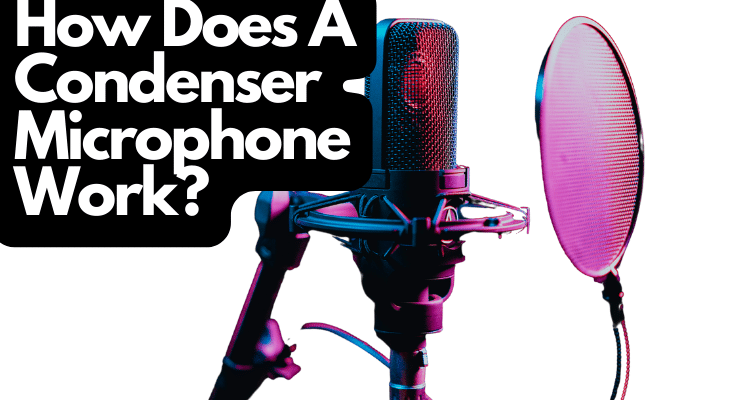
  • How Does A Condenser Microphone Work? 🎙️

    If you’ve looked into making music, podcasting, or any other recording form, chances are you’ve heard of or seen a condenser microphone. This microphone is an excellent option for recording both instruments and vocals, but you might need clarification on exactly how they work.

    A condenser microphone works by converting audio signals to electrical energy. It uses two charged metal plates to make a capacitor. As sound waves connect with the metal plate, they begin to vibrate within it. This movement produces an electrical signal that matches the sound source.

    The rest of this article will detail a few topics related to this question, including what makes a conder microphone work, what they are used for, and some pros and cons of this microphone type. 

    How Does A Condenser Microphone Work

    How Condenser Microphones Work

    Condenser microphones use vibrations produced by incoming sound waves to fluctuate the voltage of their internal parts. This fluctuation copies the pattern of the incoming acoustic energy to produce an electrical signal. 

    To fully understand this mechanism, you must understand the function of the parts that make up a condenser microphone.

    Its Capacitor System Converts Audio Signals Into Electrical Energy

    Condenser or capacitor microphones get their name from the “capacitor” inside, which handles audio conversion into electrical energy.

    The capacitor in a condenser is made of two parallel metal-surfaced plates placed close together, which allows voltage to be stored and run across them. This process is called capacitance.

    Capacitance describes the ability of a component or circuit to collect and store energy in the form of an electrical charge. If the electrical charge moves between two uncharged conductors, both become equally charged (one positive and one negative), producing a potential difference between them or a voltage.

    You measure the capacitance value of a capacitor in farads (named after physicist Michael Faraday). A farad is the largest quantity of capacitance. However, most common electrical devices use capacitors that only produce a fraction of a farad, called a microfarad (thousandth of a farad ) or picofarad (a trillionth of a farad).

    Key Components of the Capacitor System

    In a condenser microphone’s two-plate capacitor system, one is called a backplate, and the other is called a diaphragm. These two plates are housed inside a microphone capsule and are visible if you remove the microphone’s grille. The sound capture part of a condenser microphone is typically called a capsule.

    • Backplate. The back plate is immobile and usually constructed of solid brass. Although it is fixed in place, the backplate is often perforated (pierced with one or more holes), which allows air to pass through it. These partially drilled holes alleviate the pressure produced by the natural resonance of the diaphragm.
    • Diaphragm. On the other hand, the diaphragm is a mobile piece and is typically made of more lightweight metals or from mylar, with a thin gold coating to allow electrically conductive. The diaphragm works like a drum skin, resonating vibrations and sound waves. Its job is to identify subtle changes in air pressure made from the sound of vocals, instruments, or the room itself that is being recorded.

    Condenser Mics Require an Outside Power Source

    Other key parts include the impede converter and power supply. Condenser mics typically don’t generate enough voltage on their own and require help to raise their low currents. The impedance converter’s role is to boost the electrical signals generated by the capacitor.

    Unlike dynamic microphones, condenser mics require an outside source to power. Depending on the microphone, this can come from an audio interface through the use of an XLR cable or from a separate device like a PC or laptop through a USB port. This process is typically called phantom powering or phantom power.

    If you’re looking for a more detailed look at the inner workings of these microphones, this video does a great job of breaking it down.

    Types of Condenser Microphones

    Although it is a very distinct type of microphone, condenser mics come in a wide variety. Typical condenser microphones are split between diaphragm size and capsule polarization. 

    Small-Diaphragm vs. Large-Diaphragm Condensers

    The most common difference between condenser microphones is the size of their diaphragms.

    While the basic functionality will be similar, different size condensers typically have unique performances and specializations.

    Size

    A large diaphragm condenser typically has a diaphragm with a diameter equal to 1 inch (25.4 mm) or more. A small-diaphragm condenser has a diaphragm diameter of 1/2 inch (12.7 mm) or even less.

    It’s important to note that even though these diaphragms have different sizes, they both use the same fundamental capacitor system, including a static backplate, mobile diaphragm, and need for an external power supply.

    Although they have the same base functionality, their sizes give them unique differences, including transient response, frequency response, and polar patterns. 

    Transient Response

    Transient response determines how accurately a microphone reacts to transient audio present in its diaphragm. Transients are small high-energy sound bursts typically found at an audio source’s beginning. The loudest and most apparent transients come from percussion-based instruments but can be found in string instruments and horns.

    Large-diaphragm condenser microphones typically have slow but very accurate transient responses. Their bigger size hinders these microphones’ ability to react to transients quickly. However, they still do a great job of creating proper audio reproduction. 

    Small-diaphragm condenser microphones are designed to have fast transient responses meaning they can react to transients exceptionally quickly. Their transient response level makes them one of the most precise microphones available. Although uncommon, some smaller ones are too fast and will overreact to transients causing an inaccurate capture. 

    Frequency Response

    Frequency response refers to the total range of frequencies and tones a microphone can recreate. Better frequency response means the audio components are better at recreating sound waves with minimal to no changes.

    Both large-diaphragm condenser and small-diaphragm condenser microphones have flat frequency responses making for accurate reproduction. Large condensers generally have a fall-off at higher rangers creating a bright or even harsher sound. 

    Small condensers don’t experience these resonant cancellations and, as a result, have a cleaner sound even above human hearing ranges.

    Pattern Style

    Polar patterns refer to the direction of the microphone from which it records sound best. The most common directional polar patterns include cardioid, hyper/super cardioid, bidirectional, and omnidirectional.

    • The cardioid pattern is the most common and typically used when you only want to record one source at a time. They are named after their heart-shaped pattern and focus on sound from the front of the mic, reducing noise generated from the side and rear of the device. 
    • Hyper-cardioid and supercardioid polar patterns are cardioid shapes with an even stricter focus on recording from the front, picking up even less sound from the sides and rear. A shotgun microphone is another directional device with an even shorter range. They are commonly used in film and TV sets that don’t require long-distance audio capture. 
    • Bidirectional or figure-of-eight polar pattern refers to microphones that pick up sound from the front and rear equally but block capture from the sides (making an “8” shape). They produce a more natural sound as they capture both the source and ambiance from the room itself. 
    • Omnidirectional microphones are designed to pick up sound from all directions of the microphone making a circle shape. These microphones are best at capturing the most natural and realistic audio possible. These mics are great for recording multiple people at once or when you want to incorporate the area’s sound into the recording. 

    Large-diaphragm condensers typically have a multi-pattern style that allows them to match multiple polar patterns by mixing different polarities and amplitudes. Their polar pattern can change at different frequencies, becoming more omnidirectional at lower levels while becoming more narrow at higher frequencies. 

    Small-diaphragm condenser microphones’ polar patterns tend to be more consistent, maintaining their patterns across various frequency levels. Their size is consistent and lightweight, making them ideal for shotgun microphones.

    Self-Noise

    Self-noise refers to how much noise or feedback is produced while it is in use. Due to their active components, all types of microphones have some level of self-noise, just at varying degrees. Limiting outside noise as much as possible is crucial when recording the desired audio, and as such, mics with lower self-noise are often preferred.

    On average, large-diaphragm condensers have lower self-noise levels than small ones. Large condensers can house much stronger audio signals giving them a more excellent signal-to-noise ratio compared to small condensers with the same quality of components. 

    However, small diaphragm condensers typically beat large ones in all other major categories. 

    Price and Use

    In terms of price, large-diaphragm condensers also tend to be much more expensive than small 

    ones.

    As far as uses go, large diaphragm condensers are typically used for recording voices, groups, acoustic guitars, and pianos. They are best for picking up the ambiance of the recording room. Small diaphragm condensers are better for recording instruments overall. 

    Electret Condenser

    Besides size, condenser mics are grouped by their polarization. While typically, condenser microphones require an outside source to establish a charge, Electret condensers 

    have a permanent electrical charge by utilizing an electret film. 

    Electret film is an electrostatic magnet that removes the need for a high-voltage power supply. Like other condenser mics with a polarized capsule, an electret condenser has small and large diaphragm sizes. 

    Pros and Cons To Consider

    Due to their unique design, condenser microphones come with very distinct strengths and weaknesses.

    Pros

    Some of these advantages include the following:

    • A wide-frequency response. With a wide frequency, condenser mics can record a wide range of decibels. This sensitivity allows them to obtain subtle and more nuanced audio with better quality than other kinds of microphones.
    • High-quality sound. The capacitor inside a condenser mic has a high transient response allowing it to reproduce high-quality, clear sound free of distortion. 

    Cons 

    Although they have apparent strengths, condenser mics come with some significant issues.

    • They have delicate components. Although their sensitivity helps them pick up intricacies in sound, it always makes them adverse to loud noise. Loud audio can overwhelm and even damage these microphones leading to audio disruption. This makes them a poor choice for live recordings.
    • A reliance on phantom power. As mentioned previously, unlike dynamic mics, condenser microphones lack an internal energy source and must get power externally. Meaning you will need to purchase another device to begin recording. 
    • Typically more expensive. Although condenser mics are famous for their superior sound quality, they come at a higher price than other microphones. Their price and need for a separate power supply can make purchasing one a significant investment. However, there are more affordable versions available.

    When To Use a Condenser Microphone

    With such high sensitivity and audio quality, conders microphones work in various tasks, including vocal and instrumental recording.

    Typically a condenser microphone is the best used for recording human voices. Since these mics can pick up more details and nuance in human speech, they are perfect for conveying and enhancing vocal performances. Their sensitivity makes a world of difference where the subtleties matter more, like voice acting, podcasts, music vocals, and audiobooks. 

    Although live performances like concerts aren’t ideal for condenser microphones, more conversational work like recording audio for television and film is perfect. They are fantastic for capturing the performance but typically won’t produce enough sound waves to harm the microphone.  

    Even though these mics aren’t built for loud instruments like drums, horns, and amps, they work well to capture more ambient sounds from acoustic instruments. Just like with vocals, a condenser mic is unmatched at capturing the nuisances in the sound of instruments like autistic guitars, shakers, and tambourines. 

    Conclusion

    Like all microphones, condenser mics take sound waves and vibrations and convert them to electrical signals. Condenser microphones use a sensitive two-plate capacitor system, allowing them to produce higher-quality audio from a wide range of frequencies. 

    Although great for finding the nuance in audio, the delicate nature of these devices makes them unequip for recording live, noisy instruments. They also rely on phantom power, meaning they do not produce their own energy and require an external power supply. 

    Sources 

    • Britannica: Capacitance
    • Richard Pryn: How Do Condenser Microphones Work?
    • Fluke: What is capacitance?
    • Homestudioexpert: Best Blue Yeti Microphone 2023
    • Sound on Sound: Capacitor Microphones Explained
    • The Drum Place: What Are Drum Skins Made Of
    • Mynewmicrophone: Large-Diaphragm Vs. Small-Diaphragm Condenser Microphones
    • Rode: What Are A Microphone’s Polar Patterns?
    • Joey Sturgis Tones: What Are Transients & Why Do They Matter to Your Mix?
    • Sound Guys: What is frequency response and how does it affect my music?
    • Mynewmicrophone: What Is A Condenser Microphone? (Detailed Answer + Examples)
    • Masterclass: What Is a Condenser Microphone? How Condenser Mics Work
    • Presonus: What is a Condenser Microphone?
    • My eLearning World: What is a Condenser Microphone and How Does It Work?
    • Youtube: How do Condenser Microphones work? | Electric potential and Capacitance | Physics | Khan Academy
    • MXL Mics: Mic Stuff: How Condenser Microphones Work
    • Teach Me Audio: Condenser Microphone
    • Electronics: How to Use a Condenser Microphone
    Was this article helpful?
    YesNo

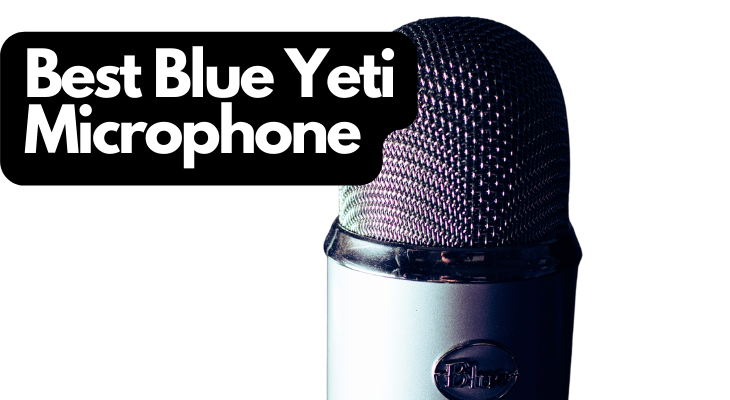
  • Best Blue Yeti Microphone 🎙️2023

    Blue Microphones is a company that has been producing high-quality microphones since the mid-90s. The company has cultivated a reputation for good microphones, but the Yeti USB microphones made by Blue completely changed the audio world forever. Blue Yeti mics are some of the best on the market, but which mic in the Yeti range is the best?

    The best Blue Yeti microphone is the Blue YetiX. This mic features four high-quality condenser capsules, records at 48kHz 24-bit, and has a switchable pickup pattern for maximum functionality. This mic has many unique features and is ideal for podcasts, content creation, and recording instruments. 

    Best Blue Yeti Microphone

    Mics made by Blue Microphones are outstanding, and they have a reputation for being some of the best available, but the USB mics made by this company set them apart from all other mic manufacturers. If you want to get a Blue Yeti, you have already made a good decision, but which Blue Yeti is best for you?

    Which Blue Yeti Microphone Is Best?

    Logitech for Creators Blue Yeti X USB Microphone for Gaming, Streaming, Podcasting, Twitch, YouTube, Discord, Recording for PC and Mac, 4 Polar Patterns, Studio Quality Sound, Plug & Play-Black

    • Four-Capsule Array – Capture Legendary Blue Broadcast Sound With Greater Focus And Clarity Than…
    • High-Res Led Metering – Visualize Your Voice Level At A Glance And Adjust Up Or Down For Powerful,…
    • Multi-Function Smart Knob – Fine-Tune Your On-Stream Sound With Easy-Access Controls For Mic Gain,…

    Last update on 2025-07-19 / Affiliate links / Images from Amazon Product Advertising API

    Blue Yeti microphones are widely regarded in the industry as some of the very best USB microphones available. High-quality USB microphones changed the world of audio forever, and the Yeti range from Blue Microphones has always been a forerunner in the development of this microphone type. 

    However, Blue Microphones has produced not only one Yeti microphone, but the company has developed an entire range of Yeti mics with different features and specifications. 

    All Blue Yeti microphones are good, but if you are looking for the best in the range, which should you choose?

    The best Blue Yeti USB microphone is the Blue YetiX

    The YetiX is the flagship USB microphone made by Blue Microphones and is the next progression from the standard Yeti that is responsible for the good name of this microphone range. 

    The Yeti X is an improved and upgraded version of the original Yeti, and it is made to produce a higher audio quality and is built with more features than the original mic. 

    Some of the most impressive features of the Yetiinclude a higher bit-rate than any other Yeti mic, four condenser microphone capsules, a four-way switchable pickup pattern, a built-in headphone preamp, a multi-functional smart-knob, built-in level metering via an LED array, G Hub integration, and access to VO!CE, which provides vocal effects, modulation, and HD audio samples. 

    This microphone is made to be the ultimate USB mic for multi-purpose use, including podcasting, streaming, recording instruments, and vocals, as well as everyday uses such as video calls and conferences. 

    The Blue YetiX has customizable light colors; the mic comes with a good desk stand and a 2m (6.5ft) USB cable, is compatible with Windows and macOS, and is specifically designed to look good on camera. 

    The sensitivity of this microphone makes it ideal for multiple purposes, but it is always made to be as versatile as possible and can be configured to be as focused for your purposes as possible with G Hub and the built-in controls, as well as the software that Blue provides for the mic. 

    Few USB mics on the market compare with the YetiX. This is the most versatile and useable Yeti mic in the range and is among the best and most useable USB mics available right now. 

    Blue YetiX Specifications

    To further demonstrate the features of the Blue YetiX, here is a table that outlines the core specifications of this world-class microphone.

    Specifications of the Blue Microphones YetiX

    Microphone Performance and Figures
    Power Requirements / Usage 62mA – 203mA
    Sample Rate 48kHz, 24-bit
    Capsules 4x Blue-Proprietary 14mm Condenser Capsules
    Polar Patterns (Switchable)  Cardioid, Omnidirectional, Bidirectional, Stereo
    Frequency Response 20Hz – 20kHz
    Maximum SPL 122dB
    Dimensions With Stand 4.33” x 4.8” x 11.38” (11cm x 12.2 cm x 28.9cm)
    Weight Without Stand 1.14lbs (0.519kg)
    Weight With Stand 2.8lbs (1.28kg)
    Headphone Amplifier 
    Impedance 13 Ohm minimum, 16 Ohm typical
    Power Output (RMS) 72mWrms per channel
    Frequency Response 20Hz – 20kHz
    Signal / Noise 100dB
    System Requirements
    PC Windows 10 or higher
    Mac macOS 10.14 or later
    USB Port Requirements 1.1 / 2.0 / 3.0

    What Are The Other Microphones In The Yeti Range?

    We have established that the Blue YetiX is the best mic in the Yeti lineup, but there are several other mics on the range to consider. 

    The YetiX is significantly more expensive than the other mics in the range, which means that it may be out of reach for some people, but the good news here is there are several excellent mics in the Blue Yeti range, and all of them are ideal for all USB microphone applications. 

    The Blue Yeti microphone lineup consists of the following microphones:

    • The Blue Microphones YetiX
    • The Blue Microphones Yeti
    • The Blue Microphones YetiNANO

    The YetiX is, as we have established, the best mic in the range, but the rest of the Yeti range is also outstanding. 

    The standard Yeti is the mic that made this microphone range famous and has many of the features of the premium X version. It lacks the fourth mic capsule and some configuration and metering features, but almost all of the other features are the same. 

    The standard Blue Yeti remains one of the best USB microphones on the market and is more affordable than the premium mic. 

    The YetiNANO is a USB mic focused on the spoken voice. The higher-tier mics in the range are great for voice, instruments, and vocals, but the NANO is geared around podcasting, streaming, recording audio for videos, and conference calls. 

    The NANO is still a powerful condenser mic with two high-quality mic capsules. It can record in 24-bit, 48kHz, which means it is capable of high-quality audio, and it is a smaller microphone than the other mics in the range, which is good for a smaller recording or streaming setup. 

    All the microphones in the Yeti range are very high-quality, and you will not be disappointed if you choose to use them. The NANO is the only mic in the range that is not ideal for recording instruments, but if you use these mics for their intended purpose, there are almost no USB mics that can match them. 

    Blue Snowball Microphones

    Logitech for Creators Blue Snowball iCE USB Microphone for Gaming, Streaming, Podcasting, Twitch, YouTube, Discord, Recording for PC and Mac, Plug & Play – White

    • Custom Condenser Capsule: Powered By Blue’S Custom Condenser Capsule, Snowball Ice Microphone…
    • Cardioid Pickup Pattern: Captures Your Voice With Clear, Focused Sound For Streaming, Podcasting,…
    • Stylish Retro Design: Record Or Stream In Style With A Classic Recording Equipment Design That Looks…

    Last update on 2025-07-19 / Affiliate links / Images from Amazon Product Advertising API

    When exploring the Yeti microphone range, it is also essential to mention the Snowball microphone range. 

    The Snowball mics from Blue are a smaller version of the Yeti microphones, equipped with only one condenser capsule. These mics are very small and designed to be portable and easy to use, but they are still very powerful. 

    Snowball mics can even be used for recording vocals and instruments, they can be equipped with shock mounts for stable recording, and they are the best mic to use for podcasting on the move. 

    If you are looking for a good USB mic but want something portable or cannot yet afford a Yeti, the Blue SnowballICE and Snowball microphones are excellent options. 

    What Makes Blue Yeti Microphones So Good?

    Blue Yeti microphones are considered some of the best UB mics around, and many consider them the industry standard for streaming. What makes these microphones so good, and why are they so popular with many content creators and musicians?

    The reason Yeti microphones from Blue Microphones are so good is that they have specially designed microphone capsules that are made to function well in a USB-mic format, and the microphones themselves are very high-quality with excellent features. 

    The core requirements of any microphone, used for any purpose, are audio quality, useability, versatility, and accuracy. These four fundamentals of a good microphone all determine how well the mic can be used, how easily it can be used, how well it performs, what the mic can be used for, and the quality of the microphone’s audio recording. 

    The Yeti microphones score highly in all these metrics, and they have several innovative features, such as switchable pickup patterns and powerful configuration software that can also add digital effects to the mic audio. 

    These mics have built-in preamps, are highly versatile, can be used for almost any purpose, sound incredible, are very easy to use, and excel at their intended purpose. 

    Blue Yeti microphones are so good because they are made well, have been designed intelligently for maximum useability and functionality, and sound outstanding compared to almost all other USB microphones. 

    Are Blue Yeti Microphones Worthwhile?

    If you are looking for a good USB microphone, you will find good mics other than the Blue Yeti range. What makes Blue Yeti mics stand out from other UB mics, and are they worthwhile purchasing?

    Blue Yeti microphones are worthwhile purchasing and using. These mics are significantly more affordable than many of the other top USB mic brands on the market, and they are better equipped and come with more features and tools than almost any other USB mic range. 

    Everyone who uses a Blue Yeti mic states the mics are brilliant for what they are, and they are always highly recommended by their users. 

    Top YouTubers, streamers, podcasters, and even musicians use these mics because of their high quality and versatility. No other USB microphones offer the same features as the Yeti mics with the same features, functionality, and versatility. 

    The switchable pickup patterns of the Yeti and YetiX are enough on their own to warrant using these mics, as this feature turns one USB microphone into an entire studio’s worth of microphones. 

    Blue Yeti microphones are very worthwhile, and if you have the opportunity to use one, you will not be disappointed. 

    Which Blue Yeti Microphone Is Best For You?

    The Blue Yeti mic range is excellent, and all of the mics are great for what they are, but which of the Yeti range is the best microphone for you?

    The three mics in the Yeti range are all designed for specific tiers of recording. The YetiX is designed to be as versatile and high-end as possible but is designed for content creation more than anything else. 

    However, the four internal condenser capsules make it the most versatile USB mic on the market and make this mic ideal for recording and streaming almost anything. 

    The standard Yeti mic is designed to be highly versatile and made to be used in all types of recording environments. This mic is a good all-rounder and is an excellent option for almost all audio applications, but it does lack some nice-to-have features that many other USB mics are equipped with. 

    The YetiNANO is the ideal mic for a podcaster, streamer, or gamer, especially if you need a portable setup. This mic is not great for recording instruments or singing, but it is excellent for recording the spoken voice. 

    This means that if you need a high-quality, top-end USB mic for multi-purpose recordings, then the YetiX is the best option for you. If you need a mic for more general use and do not need all of the features of the premium version, then the standard Yeti is an ideal mic for streaming, gaming, video calls, instruments, singing, and capturing audio for online content. 

    If you need a portable and shockingly easy-to-use mic, then the YetiNANO is the best in the range for you. This mic is ideal for podcasting on the move and is small enough to fit into any luggage easily. 

    Take your time to explore the Yeti range and consider your microphone requirements to identify the best Yeti mic for you. all of the options are excellent, but it is best to choose the mic that suits your requirements. 

    Check out: Best ASMR Microphones

    Conclusion

    The best Blue Yeti microphone is the YetiX. This is the most comprehensive, feature-rich, highest quality, and most versatile microphone in the Yeti range and is considered to be among the best USB microphones available right now. There is almost no better USB mic with the same price-value ratio. 

    Yeti microphones are excellent, and if they are used well within their intended range of functionality, it is difficult to find anything better. If you need a USB microphone for any purpose, look no further than Yeti microphones. 

    References

    • https://www.bluemic.com/en-us/products/yeti-aurora/
    • https://www.bluemic.com/en-us/products/snowball-ice/
    • https://www.bluemic.com/en-us/products/snowball-ice/
    • https://www.bluemic.com/en-us/products/snowball/
    • https://www.bluemic.com/en-us/products/yeti-x/
    • https://www.bluemic.com/en-us/products/yeti/
    • https://www.bluemic.com/en-us/products/yeti-nano/
    • https://www.bluemic.com/en-us/products/yeticaster/
    • https://en.wikipedia.org/wiki/Blue_Microphones
    Was this article helpful?
    YesNo

  • Best Binaural Microphone 👂 2023

    There are thousands of different types of microphones in the world, and each of them has its own characteristics and produces unique sound qualities when used for recordings and performances. Binaural microphones have become more popular with the development of ASMR content, as well as ambient soundscapes, 3D music, and virtual reality. If you are interested in this type of microphone, which is best?

    The best binaural microphone on the market is the 3Dio Free Space Pro II. This mic has excellent dynamic range, frequency response, and sensitivity. It features two silicone ears to ensure sound enters the mic the same way it enters an ear, producing the most immersive binaural audio possible. 

    Best Binaural Microphone 1

    Binaural mics need to be very well made, highly sensitive and calibrated well. They must be made to capture audio closely to the way a human ear hears it. This is no small undertaking. Therefore, most binaural mics are very well-made and high-quality, making choosing the best model challenging. With that said, there are a few stand-out models to look at. 

    What To Look For In A Good Binaural Microphone

    Before we explore the best binaural microphones on the market, let’s take some time to explore what makes a binaural mic good and how to find a good one. 

    All microphones function in the same basic way. The real difference in microphone types is the quality of the components that are used in the hardware, the casing and surrounds that are used for the mic, and the sensitivity of the components of the device. 

    All binaural microphones are designed for the same function, but not all binaural mics are equal. The design of the mic can completely change the recordings that can be made with it and how the microphone can be used practically. 

    This means there are some crucial aspects of binaural microphones to look for if you want to buy a good one. 

    The first consideration to make when buying a binaural mic is what you want to use the mic for. As an example, a mic that is designed for recording speaking in 3D space and a mic that is designed for recording binaural ambient sounds may not have the same features and design. 

    The same is true for mics made for ASMR content and those made for recording 3D music. the first step is to always determine what you will use the mic for. 

    When looking for a good binaural mic, it is crucial to find a unit with the most sensitive microphones you can find, but always with the right mic housing for your applications. 

    A good binaural mic will be very sensitive but also have good mic filters and casings. The best binaural mics have a housing shaped like a human ear to enable the microphones to pick up sounds the same way the human ear does. 

    It is also important to find a binaural mic with the right connectors for your purposes, as some can only plug into a mobile device. 

    A good binaural mic has an XLR or 3.5mm jack output that is capable of sending the audio to a microphone preamp. 

    Another thing to look for in a good binaural mic is how it can be mounted, worn, or moved. A mic like this should be able to remain as stable as possible when recording, but it should also be easily mobile to ensure that you can use it wherever you want to. 

    These mics should also have good noise suppression and high-quality noise cancellation where applicable, and they should be made as durable as possible with high-quality construction. 

    All of these features add up to make a good binaural microphone. If the mic that you are looking for that suits your purposes also has these features, it should be a safe one to buy. 

    Which Binaural Microphone Is Best?

    Now that we have established what goes into a good binaural microphone, we can consider which of these mics is the best available right now. 

    At the time of writing, the best all-around binaural microphone available is the 3Dio Free Space Pro II. 

    This is a professional binaural microphone that is designed to produce the best binaural audio possible right now. 

    The FS Pro II is equipped with two DPA 460 CORE microphone capsules, which are two of the most sensitive but smallest condenser microphone capsules available. These mics are perfect for binaural uses, as they have a wonderfully flat frequency response and high sensitivity, and a great dynamic range. 

    These microphone capsules are mounted within two silicone human ears that are mounted to the microphone unit. These ears are specially sculpted to match the shape and form of a human ear. The mics capsules are mounted in the same location and at the same depth within the replica ear canals as the eardrum is within our own ears. 

    This means that sounds enter the microphone capsules in the same way that it enters our ears. 

    This feature, combined with the sensitivity and dynamic range of the mic capsules, means that the FS Pro II is the closest microphone to the human ear that is possible. 

    The mics are set up as stereo input devices, and each has a dedicated balanced XLR output. This enables you to capture audio from each capsule independently, allowing the audio from the FS Pro II to be mixed well in stereo for the best possible binaural results. 

    The FS Pro II also has a 3.5mm (1/8”) output, which sends a mic-level audio signal. 

    The entire unit can be powered with a 9V battery that should last for many hours of continuous use, or the mic can be powered with phantom power from an interface, console, or mixer. 

    The FS Pro II has an adjustable mount adapter that allows it to be used with any microphone stand. It also ships with a custom hard-shell travel case for transport and storage and an output cable for the 3.5mm jack output that splits the signal from the mic into stereo channels. 

    There are no better commercially available binaural microphones available on the market. The FS Pro II captures the truest-to-life sound possible, with immense clarity, high audio quality, and reliability, and produces a highly useable audio signal. 

    3Dio Free Space Pro II Specifications

    We have learned that the FS Pro II is the best mic of its type on the market right now, but to demonstrate its full capabilities and features, here is a breakdown of the specifications of the FS Pro II.

    Specifications of the 3Dio Free Space Pro II:

    Dimensions 7.5” x 4.5” x 4.5”
    Weight 755g
    Output 3.5mm Stereo Output (Mic-Level)
    Output 2 x Balanced XLR Outputs
    Directional Pattern Omnidirectional
    Cartridge Type Pre-Polarized Condenser
    Frequency Range 20 Hz – 20kHz, 3dB Soft Boost at 8 – 20kHz
    Sensitivity 20mV/Pa; -3dB re 1V/Pa
    S/N Ratio 71dB(A)
    Total Harmonic Distortion 126dB SPL RMS, 129 dB SPL Peak
    Dynamic Range 106 dB
    Maximum SPL 134dB
    Output Impedance 30 – 40W
    Power Supply Min. 5V – Max. 50V; 48V Phantom for full performance
    Microphone Diameter 5.4mm
    Temperature Range -40°C – 45°C
    Relative Humidity Up to 90%
    Battery 9V Alkaline

    Other Good Binaural Microphones

    The 3Dio FS Pro II is the best binaural mic on the market, but there are several other excellent options if this mic is not quite what you are looking for or if it is out of your price range. 

    The trouble with the FS Pro II is that it is designed for professionals, and it is not well-suited for beginners or for those who have no experience with using binaural mics. This mic can be challenging to use. 

    For this reason, there are several other good options to consider when looking for a binaural microphone. 

    Some of the best alternatives to the 3Dio FS Pro II include:

    3Dio FS Binaural Microphone, Immersive 3D Audio

    • Immersive 3D audio with a stereo signal. 3Dio microphones mimic human hearing to create an immersive…
    • Our customers use them for a wide variety of applications such as: – Field recordings and nature…
    • The output of the FS binaural microphone is a stereo 3.5mm (1/8″) output jack. Simply plug it in to…

    Last update on 2025-06-23 / Affiliate links / Images from Amazon Product Advertising API

    • The 3Dio FS
    • The 3Dio FS XLR
    • The SonicPresence SP15C
    • The Zoom H3 VR 360° Audio Recorder
    • The Rode NT-SF1 SoundField
    • The Roland CS 10-EM
    • The DPA 4560 Binaural Headset 

    All of these binaural microphones are good at what they do, however, if you are looking for some options for studio use pr for recording ASMR content, then the mics from 3Dio are your best option, and the Zoom H3 will work well too. 

    If none of these mics provide what you are looking for, then it is a good idea to consider using a high-quality condenser microphone. These mics are very sensitive, provide high-fidelity clear audio that is easy to use, and are used by musicians and content creators everywhere as a very good alternative to binaural mics. 

    Some good options for this microphone type include the following:

    • Almost any condenser mic from Blue Yeti
    • The HyperX QuadCast
    • The Rode K2 Multi-Pattern Condenser Microphone
    • The Audio-Technica AT2020 

    Check out: Best Blue Yeti Mic

    Which Binaural Microphone Is Best For You

    We have established that several excellent binaural microphone options are available, but the reality is that not every binaural microphone is good for all binaural recording purposes. 

    There are plenty of binaural mics to choose from, but they are not all built the same, and they each have their own strengths and weaknesses. 

    This is why it is best to consider which binaural microphone is best for you and your purposes rather than which binaural microphone is best regarding its specification. 

    For example, if you want to use a binaural mic for recording ambient audio in a city or in nature, then a 3Dio mic may not be the best option. These mics can be very difficult to use in these situations. A good option for this use is a binaural microphone headset that places the mics in your own ears and records what you hear. 

    However, if you want to use a binaural mic for recording 3D music, soundscapes, audio from video games, or virtual reality, or if you are generally using the mic in a studio environment, there are no better microphones to use than 3Dio binaural mics. 

    These mics are made for this purpose and excel in this environment. 

    Condenser mics and binaural mics, such as those 3Dio, are also excellent for content creation in studios or studio environments, such as creating ASMR content. 

    This means that it is crucial to consider which binaural microphone is best for you rather than which mic is best on paper. Consider what you want to do with the microphone and make your decision based on your own requirements, and you are sure to find the best microphone setup for you. 

    Check out: Best ASMR Mic

    Is It Worthwhile Using A Binaural Microphone?

    Binaural microphones are an excellent microphone option, but if condenser microphones work well for similar purposes, is it worthwhile using a binaural microphone?

    The reality is that while condenser microphones are more versatile than binaural mics, and they can be used for more purposes and capture high-quality audio, there are no mics other than binaural models that can capture true binaural, truly 3D, and immersive sound. 

    A condenser mic will capture high-quality audio, and it will hear everything in a room well, but even if you use an omnidirectional mic, all of the recorded audio from the mic will sound as if it is coming from a single point in space, regardless of where the sound source was in relation to the microphone. 

    If you want to capture audio in 3D space and have the audio that the microphone captures sound like it is coming from various locations, there is no other way to do it than using a good binaural microphone. 

    Conclusion

    There are many microphones on the market capable of recording binaural audio, but none is better for the job than the Free Space Pro II by 3Dio. This mic is the industry-leading binaural mic, especially for studio recording environments. 

    Take the time to consider what you want from a binaural mic and find the mic that best suits your intentions. The best mic on the market is not necessarily the best binaural mic for you. 

    References 

    • https://www.raycom.co.uk/category/microphones/binaural-3d-vr-microphones/
    • https://www.bestproductsreviews.com/binaural-microphone?targetid=dsa-19959388920&matchtype=&device=c&campaignid=18708476341&creative=630719999458&adgroupid=142814614756&feeditemid=&loc_physical_ms=1028684&loc_interest_ms=&network=g&devicemodel=&placement=&keyword=$&target=&aceid=&adposition=&trackid=us_all_top_1_1&mId=407-132-4411&trackOld=true&gclid=CjwKCAiAzp6eBhByEiwA_gGq5DerTMb-hQlB8fMrf05aJ7GIDGELCfvvFmaghu88TxenZaPWCLn3BhoCIFoQAvD_BwE
    • https://www.youtube.com/watch?v=cpOWRWtfo14
    • https://www.amazon.com/dp/B0833GZ29C?tag=freetousesoun-20&geniuslink=true
    • https://www.clickitticket.com/best-binaural-microphones/
    • https://makingmusicpro.com/what-is-the-best-binaural-microphone/
    • https://playthetunes.com/binaural-microphone/
    • https://3diosound.com
    • https://3diosound.com/products/free-space-pro-binaural-microphone
    • https://3diosound.com/blogs/learn-about-sound/what-is-binaural
    • https://www.magneticmag.com/2022/08/asmr-microphone/
    Was this article helpful?
    YesNo

  • How To Turn Off Mic Monitoring on a Blue Yeti

    Mic monitoring on a Blue Yeti enables you to listen to what you’re recording through the headphones/a headset without any latency. By doing so, you can adjust sound quality accordingly if it’s necessary. However, if you prefer or need to listen back to your work after making the recording, you’ll need to switch it off.

    You can turn off mic monitoring on a Blue Yeti by opening your Windows and right-clicking the system tray to select Recording Devices. Right-click the default microphone and select Properties. Tap the Listen tab and disable “Listen to this Device” before pressing Ok.

    In the rest of the article, I’ll discuss in more detail how you can disable direct mic monitoring in different ways on your microphone, PC, or Mac so that you can choose the approach that works best for you.

    How To Turn Off Mic Monitoring on a Blue Yeti

    1. Deactivate Mic Monitoring on Your Computer or Laptop

    You should first ensure that the Yeti is connected to your PC using a USB cable to turn off mic monitoring before you make a recording. You need to do this because direct monitoring always automatically turns itself on when you insert your headphones into the Yeti.

    Open your windows 7, 8.1, or 10 – the operating systems (OS) that the Blue Yeti normally functions on and open the control panel. Once there, click the Sound or Volume control icon to bring up a small window. 

    On that opening, tap Recording and right-click the default Blue Yeti microphone to open up a new window where you will have to select Properties. Tap Listen and uncheck the “Listen to this Device” tab before pressing Ok to finish turning off mic monitoring.

    Alternatively, you can mute monitoring by going to the system tray and right-clicking the Volume icon to select the Playback devices tab. Right-click on the Yeti mic and select Properties to bring up the Select Levels display. Press mute or adjust the volume on the Microphone slider to stop hearing yourself through the headphones as you speak.

    However, if you use the Audacity audio editor software on your Windows to record a songOpens in a new tab., go to the Control Panel and tap Sound. 

    Once the down display screen appears, click on Speakers to allow you to select the USB Advanced Audio Device. Tap Properties and then Levels from where you should click Microphone and turn on Mute. Additionally, you could go to Preferences in your audio settingsOpens in a new tab. and set the Yeti for Record only before selecting Playthrough instead of overdub. When Playthrough is chosen, you will not hear yourself as you record.

    2. Turn Off Mic Monitoring on a Mac Computer

    Connect the Blue Yeti to your Mac using a suitable USB cable before opening the System Preferences. Click the Sound icon and select the Blue Yeti microphone under the Input tab. After, tap the Output tab and still select the Yeti. From there, lower the Output volume to a level where you will not be able to hear yourself as you record as the monitoring feature is unable to work when the volume is very low.

    If you instead want to mute the feature, go to Finder windows and open Applications to select Utilities. Then click Audio Midi Setup to select your microphone. Under Input, uncheck the Thru box on the Master Fader. The Master Fader is an app that helps you wirelessly control your audio mixer, so if you want to mute your microphone using it, you need to first install it on your Mac.

    3. Shut Off Mic Monitoring on Ubuntu 20.04

    To do that on this open-source software OS, you should turn down the mic gain on the Yeti. You may opt to reduce it until you cannot listen to yourself through the headphone or completely decrease it to zero for immediate results.

    However, ensure that the capture is upped; otherwise, your mic recording volume will be low, resulting in poor-quality tracks or playback.

    4. Switch Off Mic Monitoring on the Blue Yeti Itself

    There are two ways you can turn off monitoring of your recordings. The first one entails muting the mic. To do this, you should press the Mute button in front of your Yeti, just below the Blue logo, and the sound monitoring will immediately stop working.  

    The other way is to reduce the volume on the mic by turning the volume knob below the Mute button. When the microphone’s volume is lowered below a certain level, the monitoring feature can get disabled. So you will have to decrease the loudness of the Yeti until you can longer hear any playback.

    5. Disable the Mic Monitoring With an EQ Plug-in

    This parametric EQ plug-in lets you turn off monitoring without muting the mic or reducing its volume. The EQ plug-in, which is in-built into the Blue Yeti and can be opened on the device’s software interface allows you to adjust the sound quality to suit your needs.

    To open this interface, go to the Start Menu on your windows and type “Blue Yeti” in the Search bar. When its screen opens up, click the EQ option, which you will find below the Menu. 

    Then, select Smooth to disconnect the EQ effects on the Yeti. By doing that, you will also turn off the direct monitoring feature, enabling you to make voiceovers and record tracks without having to listen to yourself through your headphones.

    How To Turn Off the Live Monitoring on the Blue Yeti Nano

    The Blue Yeti Nano is the upgraded version of the Yeti that offers premium sound quality for recording podcasts, YouTube videos, and Twitch streaming. It also has mic monitoring, just like the Blue Yeti, which may disrupt you while recording.

    So to switch off this feature, press the Volume control button in front of the microphone and below the BLUE icon for about two seconds until it turns pink. When the button color turns from green to pink, the monitoring will turn off. In case it turns to a different color, hold down the button once again until the pink one comes up.

    When Should You Turn off Mic Monitoring on a Blue Yeti?

    You may have to switch off the monitoring feature when doing voiceovers, making podcasts, and having zoom or Skype interviews, as it can disrupt your concentration. The best thing is to run trial tests before you start to ensure that the recording levels are set right. Otherwise, you may end up bursting your listeners’ ears when the volume is so high or turning them away because your voice is too low.

    How To Make Your Blue Yeti Sound Better When Mic Monitoring Is Turned Off

    Since the mic is bound to pick up echoes and other noises in the environment when the monitoring feature is off, you need to set it well to get high-quality recordings. Here are 9 tips to help you achieve that:

    1. Acoustically Treat Your Recording Space

    It would help if you placed acoustic panels on the walls to treat the room and prevent echoes from interfering with your recording. However, if your budget doesn’t allow you to buy these panels, you can use thick blankets, duvets, or towels to cover the walls and other items in the room, such as the bookcase and shelf. 

    Additionally, place rugs on the floor to cover the hard surfaces that can cause sound reflections in the space. In addition, think about using bass traps in the corners of your recording room. Low-end frequencies are often overlooked when treating a room, yet they can muddy your recording if they’re out of control. 

    2. Make Recordings While Close to the Wall

    It’s best to do this because it reduces the chance of experiencing echoes and reverberations. If you make your recordings in the middle of the room, the frequencies will build up to create standing waves that can throw off your records’ balance.

    Moreover, you should avoid making recordings near desks because they tend to allow bass frequencies to grow under them, causing a boomy sound that can drown out your voice. But if you cannot avoid placing it on a desk, get the Radius III shock mount to shield it from ambient vibrations, noise, and shock.

    3. Rid the Space of Noise

    Before recording, you should switch off all devices that will create background noise, such as your TV, fan, and AC. Background noise can distort your recording and lower its quality. As a result, you’ll find yourself rerecording or cleaning up the audio with various tools and wasting valuable time. So always ensure there’s no noise in your home studio before you start making records using your Yeti.

    4. Correctly Set Up Your Blue Yeti Mic

    When setting up the Yeti, the side with the Blue logo and volume control button should always face you. Moreover, place the Blue Yeti vertically with the top facing upwards instead of towards you because this microphone is a side-address device. 

    This means that you need to speak and sing into its side and not the top to get high-quality audio. Besides that, you should position the mic at the right height by placing it on a suitable stand to avoid hunching over, as it can affect the sound quality of your voice.

    5. Place the Blue Yeti at the Right Distance

    This microphone should be 6-12 inches (15-30 cm) away from you to enable you to produce content with a good sound image. The distance you decide on should depend on your voice and how you speak because if you tend to be loud and set your mic closer to you, you will end up with a very loud recording. 

    Whereas if you are soft-spoken and put the mic farther away, people may not be able to hear what you are saying. So you should first run a test with mic monitoring on to find the sweet spot by recording yourself with the Yeti placed at different distances.

    6. Choose the Right Polar Pattern

    The blue Yeti has four settings you can choose from, depending on how you plan on recording. Cardioid mode is best used when creating content solo since it captures the sound directly in front of the Yeti. The Bidirectional one is suitable for recording two-person interviews or duets as it enables you to record from the front and rear.

    Similarly, you should go for the Omnidirectional setting if you want to capture the feeling of being live. For example, in a live performance and a multi-person podcast since it picks up sound around the entire microphone. The Stereo pattern is good at capturing broad and realistic sound for choirs and acoustic guitars, as it can record from both the left and right channels.

    7. Use Reflection Shields

    These can help reduce the sound your Yeti picks up from the home studio space. When the mic is set to Bidirectional, Omnidirectional, and Stereo modes, the shields should be placed around the mic since they can capture sound from different sides. 

    For the Cardioid setting that allows the capture of sound from the front only, you should put the shields behind you to lessen the chances of the mic picking up echoes from its front.

    8. Install a Pop Filter for Your Breath

    You may breathe loudly into the microphone as you record, which can ruin your content by creating pops in it. The cheapest way to manage this issue is by working on your mic control through consistent training, or you should angle your mouth so that you speak past the side of the mic. 

    However, if you want a quick fix, you should add a studio filter, such as The Pop, to your Yeti to keep these artifacts from your records.

    9. Set the Recording Levels Right

    You should set the gain and volume of the Yeti right for your recording to have a great tone. When the gain is at the right level, it can perfectly capture your voice without any unnecessary noise from the signal. 

    Moreover, a high volume may also be susceptible to picking up background noise,  which can distort your production. To get an ideal volume level, you should listen to commercially released music for reference.

    Final Thoughts

    Although mic monitoring is great at helping you identify the faults in your recording in real-time, there are times when it can be an inconvenience. The abovementioned ways enable you to turn it off when using different applications and software and still produce excellent audio.

    Sources

    • Reddit: Turn off Direct Monitoring on Yeti “Classic”
    • West Games: How to Turn Off Live Monitoring Blue Yeti? (4 Simple Steps)
    • Industry Hackerz: What is Direct Monitoring? Blue Yeti Settings
    • Swift Moves: Mic Monitoring: What Is It? How Do I Turn It Off?
    • Audacity Forum: Blue Yeti USB Mic Hearing Monitoring Echo (Solved)
    • Audacity Forum: Blue Yeti and Listening While Recording (Solved)
    • Ask Ubuntu: Microphone Monitoring Disabled, Low Volume (Blue Yeti USB, Ubuntu 20.04)
    • DIY Video Studio: What Are the Best Blue Yeti Microphone Patterns to Use?
    • Transverse Audio: What is latency in music production?
    • Introduction to Computer Music: Acoustics Chapter One: Standing Waves
    Was this article helpful?
    YesNo

  • How To Fix Latency Issues on a Blue Snowball

    Latency refers to the delay between your voice and your headphone output, and although it may only last milliseconds, this issue can be annoying. Blue Snowball microphones are an excellent choice, but they are known to have latency issues. Here’s how to fix them.

    You can fix latency issues on your Blue Snowball by using a direct monitoring system, reducing background processes, and tweaking your settings. You can also improve internet latency by using a wired connection, reducing other internet activity, or investing in better hardware. 

    The delay is most noticeable when your voice travels through your mike and the digital processing systems and is sent back to your ears in audio. However, you have options to reduce or eliminate this often frustrating occurrence. Read on for easy steps to fix latency issues on your Blue Snowball or other similar microphones.

    How To Fix Latency Issues on a Blue Snowball

    1. Use Zero-Latency Monitoring for Your Blue Snowball

    Also known as direct monitoring, this is a system whereby audio moves from the microphone to the headphones (or monitor) without ever going through the processing stage in the software. 

    Because each step during processing contributes to latency by tiny fractions of a second, it can add up overall.

    Getting rid of processing allows you to hear the raw audio and skip the accumulated delays caused by each step the software goes through when processing. This option is great for podcasting, where the host and guest can hear each other through headphones. 

    However, remember that direct monitoring means that all the audio processing will occur after you have recorded the audio file. For example, if the software you use can filter out background noise while recording, you may turn it off. 

    Here are a few situations where zero-latency monitoring is beneficial:

    • Singing along to a soundtrack when recording music
    • Podcasting with a guest
    • Live streaming

    Blue Snowball microphones have built-in zero-latency monitoring, but if your software directs audio through processing steps instead, you might have latency issues. It’s best to check the software you are using or change it and see if you notice any difference in latency. 

    Many audio recording software can turn on zero-latency monitoring if needed, which might circumvent the processing steps causing latency in your recording. 

    2. Minimize Background Processes To Improve Latency

    If you don’t intend to use direct monitoring while recording using your Blue Snowball, you should know that your computer has a finite amount of volatile memory to spare. Each background process running alongside your audio recording software will slow down the entire system. 

    In other words, you need to have a computer with enough free memory to run the audio recording software without delays, or you’ll end up with latency. You’d be surprised how many unnecessary programs are running on your computer even if you haven’t opened anything.

    While your computer’s operating system already has a highly effective way of managing its RAMOpens in a new tab., it may get jammed while you’re recording. This issue often occurs if you are recording audio and video simultaneously.

    Here are a few ways to minimize the background processes running on your computer before recording:

    1. Close all windows other than the software you use to record your track. 
    2. Turn off applications such as screen recorders and messengers that tend to run in the background. On Windows, you’ll find their icon near the clock on the taskbar.
    3. Open the task manager and look for unnecessary programs. Close them if you are sure they are not system processes. 

    While the steps above will help you eliminate background processes immediately, there is no telling how many processes will run during recording. You can schedule many applications to run automatically based on specific queues.

    Most operating systems have a utility that monitors your system processes, such as Windows Task Manager. Alternatively, you can use a third-party application to help manage your background processes. Just be sure to use a reputable program, and you’ll be on your way to freeing up system resources in no time!

    Another trick is to disable programs that autorun at startup. For example, you might notice that remote desktop applications and messaging programs tend to run when you start your computer automatically. 

    I recommend disabling startup applications. Not only will this help fix latency issues during recording, but it will also help your computer start up faster.

    3. Use Lower Buffer Settings for Live Recording on Snowball

    High-end audio recording and editing software typically separate audio into data blocks that go through the processing algorithm. The buffer size is a setting that determines how big those data blocks should be. It’s best to use the low buffer setting while recording. 

    A larger buffer size will allow the software to work faster at processing the audio, but it will also cause some latency. This issue occurs because of the trade-off between lowered latency and increased CPU load. Although lower buffer settings should fix the problem, you may need to speed up the processing at other times.

    Many professionals recommend that you switch between larger and smaller buffer sizes in your audio editing software, depending on what you’re doing at the time.

    Opting for the smaller buffer size while recording will reduce latency as you need to hear your performance in real time. Then, you can increase the buffer size before editing to improve the processing speed, as the reduced CPU usage will enable you to use multiple plugins and still achieve a seamless sound. 

    In this way, you can balance getting more performance out of the software and avoiding latency issues that the processing might cause. 

    4. Choose the Appropriate Sample Rate

    Your Sample rate is the samples per second taken from a digital audio signal. Without understanding it, you might be familiar with this measurement—you measure it in kHz (kilohertz). Different digital audio recording systems use different frequencies depending on the medium used to store the audio.

    For example, 44.1 kHz and 48 kHz are considered the standard for digital audio. CDs usually work with 44.1 kHz, while movies usually use 48 kHz. 88.2 and 92 kHz are often used for high-res recordings, but you need a powerful setup to work with those sample rates.

    You can experiment with your computer to see if it can handle a higher sample rate. A higher sample rate reduces latency, but only if your system can handle such a heavy task. Otherwise, stick to a lower sample rate.

    You can typically change the sample rate within the audio recording software you are using. If not, the software may not allow higher-quality recording at a higher sample rate. Another advantage of choosing a higher sample rate is an overall improvement in the audio quality you produce. 

    5. Avoid Using Hubs or Stacking When Using Blue Snowball

    Using a USB hub is tempting if you have multiple microphones to connect simultaneously to other USB-powered devices. However, you should know that latency increases together with the distance between the microphone and the computer. 

    USB hubs will increase the latency when using your Blue Snowball. You will increase this effect if you are “stacking” hubs. This issue occurs because the hub is not passive wiring—some processing inside the USB hub will delay audio by fractions of a second. 

    Even passive wiring, such as the cable between the mic and the USB port, adds some delay. As the hub adds more wiring, the latency aggregates. 

    6. Watch Your Internet Activity When Using Blue Snowball

    If you are using your Blue Snowball with an internet-based activity like streaming, consider limiting background internet activity. Torrent downloads are particularly capable of disrupting your internet connection, which will cause latency issues if you’re recording over the internet. 

    You may not encounter this problem if you are recording offline. However, many people use the Blue Snowball mic to record live streams or podcasts. It’s best to turn off any applications that may be hogging up the internet connection. 

    Here are a few things you may want to do to limit high internet traffic applications:

    1. Turn off torrenting applications.
    2. Pause any pending downloads in your browser and other applications. 
    3. Turn off any video or voice calls. 
    4. Disable your video surveillance application if you have one running or use a different connection.
    5. Check the internet activity on other computers and devices in your network. 
    6. Turn off streaming applications such as Netflix or Hulu if they are using the same internet connection as your computer. This process may mean turning off your TV if needed.
    7. Call your service provider and check if you can get a better package with a faster internet connection. 
    8. Get a wired internet connection, and avoid 5G or other wireless packages.

    Many people prefer to get a separate internet connection if they intend to use it heavily for audio or video streaming. This option ensures that activity on other devices in your home will not interrupt your recording, nor will you face any latency issues. 

    7. Work With Better Hardware To Reduce Latency

    A better setup will improve your recording capabilities and audio quality. The Blue Snowball is a microphone for professional recording at home, and it’s pretty affordable. However, if you are serious about creating a home studio, you’ll need a better computer.

    Audio recording/editing is a resource-heavy task. Putting together a computer to find the software smoothly without latency requires investing in better hardware. Upgrading your CPU and RAM will allow the computer to process the audio much faster. 

    Hence, you will notice a reduced latency because there is a shorter delay waiting for the audio to be processed. It might be a negligible delay, but it can quickly add up during recording until it becomes noticeable. 

    In other words, you might want to upgrade your system to get better processors and more RAM. Your computer setup should be good enough to handle heavy gaming or graphic design. Rest assured that you’ll have no issues with latency on your Blue Snowball microphone.

    If you don’t have the means to upgrade your entire setup, consider only upgrading one part. Specifically, I recommend installing a faster processor. You can do this easily, even on laptops. 

    However, keep in mind that upgrading the separate parts of a Macbook is not an option because the components are secured so that only Apple technicians can open them without voiding the warranty. 

    If you want to upgrade your Macbook’s hardware, consider trading in your current one in order to buy a newer one at a discounted price.

    8. Disable Audio Plugins When Using Blue Snowball

    In your audio recording software, you may have the option to turn on audio plugins that help clear up audio as you record. Even if you’ve turned on the direct monitoring option, you may also want to disable the audio plugins in your software manually. 

    Audio plugins will take up processing power, eventually leading to delays in getting your audio from the microphone to your headphones or speakers. The latency improvement can be quite noticeable if you use plugin-heavy software. 

    9. Change USB Ports for Your Blue Snowball

    Many of us use the same USB port for multiple devices simply because it has become a habit. Over time, your favorite USB port might be worn out (on the inside, at least). 

    Switching to other USB ports on your computer or laptop might help you avoid latency issues because the mic would begin installation from scratch on the new USB port. I can’t guarantee this method, but it’s worth a try.

    Final Thoughts

    Although latency issues can be annoying and disruptive to your recording workflow, you can fix them without too much effort. Given the many advantages of using the Blue Snowball microphone, latency issues are a minor drawback that most users are willing to overlook. 

    To get the least latency using the Snowball, ensure you set up your microphone correctly and reduce background processes and internet usage. If you follow the steps above, you should have no delays in your audio recording when using the Blue Snowball.

    Sources

    • Producer Society: Direct Monitoring Vs. Monitoring – What’s the Difference?
    • TechTarget: Volatile Memory
    • TechTarget: Sample Rate
    • GCFGlobal: Disable Applications From Running On Startup
    • Producer Hive: Minimum Laptop/Pc Specs For Music Production
    Was this article helpful?
    YesNo

  • This Is How Close You Should Be to a Blue Snowball

    While the Blue Snowball is relatively easy to operate, where you position the mic can drastically change the quality of your recordings. Learning how far you should be from your Blue Snowball is an effective way to improve audio quality.

    You should be around 6 to 8 inches (15 to 20 cm) away from your Blue Snowball. Otherwise, the audio will suffer because the mic will pick up other noises in the environment. Also, try tilting your mouth to the side a little to avoid heavy breathing noises that might be picked up.

    In this article, we’ll talk about the specifics of placing a microphone. Read on to find out exactly how close you should position your Blue Snowball when using it in a recording studio. 

    Blue Snowball 1 1

    Where To Position Your Blue Snowball

    Position your Blue Snowball microphone 6 to 8 in (15 – 20 cm) away from you, slightly tilted away from your mouth. The best way to approximate this distance is to measure about a hands-length away. Of course, this may not be the exact spot, but it’s a start.

    You can experiment with the recording by placing the microphone at various points. Move it further or closer, and observe the subtle differences by listening to the final recording. I’d recommend keeping all other factors constant to ensure the best results when experimenting.

    In other words, don’t change your settings, voice, room, or background noises while recording. This setup will allow you to accurately determine the ideal position for your microphone. And once you have that, you can adjust the rest accordingly.

    Keep in mind that finding the right position for your microphone may take some trial and error. As such, it’s best to set aside some time to play around with it. You should also consider how comfortable you are in relation to the microphone. Are you laid back and sitting comfortably, or do you have to reach toward it? 

    If you’re uncomfortable with the position of your microphone, you’re likely to move around during the recording. Try to choose a place where you will be comfortable during the recording session.

    Factors To Consider When Positioning Your Microphone

    It’s helpful to know which factors come into play when positioning your Blue Snowball. If you’ve got the settings you’re looking for, consider the following factors when positioning your mic.

    Distance

    The distance between your Blue Snowball and the sound source is probably the most important factor to consider when positioning it. Microphones are designed to register sound within a specific radius, and staying within that range should be the first thing you think of when placing a mic.

    A crucial thing to note about distance and mic placement is their significance in video recording. The way you place your mic for different kinds of audio recordings, like songs, podcasts, and voiceovers, is pretty much the same. However, you’ll need to consider a different approach when recording a vlog or other video.

    A microphone might be in its optimal position for audio recording but at the wrong angle while recording videos. These details will differ based on the project, but it’s worth factoring this into your decision of where to position the microphone.

    As mentioned already, it’s crucial to consider whether the distance between you and the mic allows you to be positioned comfortably. You don’t want to be stuck in an uncomfortable position once the recording begins.

    Tilting

    Keeping your microphone tilted away from your mouth is the best practice. It’s especially important if you’re recording a podcast or other audio where the microphone is typically close to your mouth.

    During normal speech, we naturally let out more air when saying certain letters, such as p, t, k, or even b. When recorded, plosives disrupt the audio by creating a popping sound, which is undesirable and affects the quality.

    Tilting your Blue Snowball away from your mouth when speaking helps direct it away from airflow, thus reducing the noise created by articulating plosives. Some people also use a pop filterOpens in a new tab. for this purpose, but tilting is a strategy that has been proven to work effectively. 

    Another reason to tilt the microphone away from your mouth is to avoid recording breath sounds. Most amateurs figure out later that breathing into the mic is a recipe for bad audio, no matter how well it is edited later. 

    Direction

    It’s crucial to consider the direction of your Blue Snowball when setting it up. Because this microphone can be set as directional or omnidirectional, you need to factor in that setting when considering your mic’s placement. 

    For example, if you set your Snowball to “omnidirectional,” the mic would register sound waves from all directions (360 degrees) around it. You need to ensure that the sounds being recorded are at an equal distance from the microphone at all sides, not just the front.

    On the other hand, placing the microphone close to you in the unidirectional setting while recording sounds from all directions is a bad idea.

    Make sure you understand microphone pick-up patterns and directions well before choosing which way to point your Snowball.

    Your Preference

    Ultimately, you should be the one who decides the final outcome of your recording. Tweaking the settings and mic placement should be a part of your artistic process. Before the final setup, take the time to know the Blue Snowball and how it sounds at different positions relative to the sound source.

    Once you find the most appropriate placement for your requirements, take note of it and try to stay consistent when recording. Most professionals develop a system to ensure consistency in their recordings, which helps to keep the audio quality constant. 

    You will find that consistency in audio quality is the key to success in any type of recording you produce, whether you’re recording music, a podcast, or even using the microphone in remote work meetings.

    Once you find the sweet spot in microphone placement most suited for your specific needs, you can easily get back to that position for subsequent recordings. 

    The 3:1 Rule of Multiple Microphone Placement

    When you record with more than one microphone, you also need to factor in the distance between them as much as the distance between each speaker. There is a general rule of thumb to follow regarding multiple microphone placement: the 3:1 rule. 

    This rule states that the distance between one source of sound and its dedicated microphone should be a third of the distance between the source and the adjacent microphone. So if you’re doing a podcast with a guest speaker that needs to be recorded, place one microphone a hand’s length away from you and your guest’s microphone three hands length away from you. 

    Don’t forget that the other microphone should also be one hand’s length away from your guest. Of course, this is not a strict rule, and there is some leeway. However, sticking to this rule as closely as possible will improve audio quality.

    The 3:1 rule pertains to a recording when using multiple microphones, whether you’re recording from multiple sources or a single sound source. Typical applications where multiple mics are used include podcasting and music recording.

    Changing Positions According to Use

    Pay close attention to the differences between microphone placement for different recording applications. If you’ve set up your Blue Snowball and placed it correctly for one use, that placement may not necessarily work for other uses.

    For example, you can use your Blue Snowball microphone to record musicOpens in a new tab. or a single-person podcast, or connect a second microphone for a two-man podcast. Here’s how you want to position the microphone for each application:

    • Single-person podcast: Place the microphone around 6 to 8 in (15 – 20 cm) away from your face, slightly tilted and off-center.
    • Multiple-person podcast: Place each microphone 6 to 8 in (15 – 20 cm) away from the respective podcast guest/speaker. Ensure that each microphone is three times as far from the adjacent speaker.
    • Music recording (vocals): Keep the microphone 6 in (15 cm) away and use a pop filter to eliminate plosives and breath sounds.
    • Music recording (instruments): Ensure that the microphones are set to cardioid (unidirectional), and place each one in front of its respective instrument. 

    Why Microphone Positioning Matters

    Generally speaking, there are three reasons why the placement or positioning of your microphone is important:

    • Gain before feedback
    • Signal-to-noise ratio
    • Acoustic phase cancellation

    Each factor plays an important role in determining the best placement for a microphone. These factors are especially important when it comes to live audio. 

    This is when the audio is recorded and played simultaneously, such as in a concert. Live audio also includes live streaming from a home studio or recording a live podcast with multiple microphones.

    Experts recommend finding a balance between the factors that affect mic positioning for the best audio quality. However, it’s worth mentioning that, in the end, this is something that depends on personal taste.

    A perfect audio recording for one person may not sound ideal to another. If you’re recording a podcast or livestream where you’re entirely responsible for creative decisions, choose according to your preference and adjust according to feedback.

    Gain Before Feedback

    GBF (Gain Before Feedback) is a measure of how much you can amplify a mic before audio feedback, and mainly concerns live audio. You may recognize this sound if you’ve moved a microphone close to the speaker it is connected to—that squealing noise is the audio feedback. 

    “Gain” in audiology is a term used to describe the degree of amplification. Gain before feedback is used to describe how much a microphone can be amplified before it starts recording the sound playing from the speakers.

    This factor isn’t so important if you aren’t recording live audio because there can’t be any feedback if the speakers aren’t connected. However, your mic’s position is critical in getting the right GBF.

    Signal-to-Noise Ratio

    To get the best results from any microphone, you should aim for a balance between the sound waves the mic records and the noises it shuts out. The signal-to-noise ratio (SNR) is a measure of how much of the signal a mic records in comparison to the background noise it picks up. 

    Using a unidirectional mic can help you get a better SNR, which is why many people recording in home studios set their Blue Snowball to cardioid instead of omnidirectional. This setting ensures that the mic is only picking up sounds in front of it and ignoring signals that originate behind it.

    Remember that sound waves travel with direction, so it is easier for a microphone to only record the waves traveling in a chosen direction. This way, you can begin with a clean recording, and there is less need to edit and remove background noise.

    While positioning a Blue Snowball mic, SNR is the factor you have the most control over, as it is directly affected by your microphone’s position.

    Acoustic Phase Cancellation

    Finally, you should take into account acoustic phase cancellation when positioning multiple microphones in the same room. This factor is a measure of how the sound is affected when two mics are placed close to each other. When the distance isn’t ideal, the resulting recording can sound hollow.

    The sound waves registered by the two mics cancel each other out, so the recording sounds as if it is missing something. To ensure that this problem doesn’t occur, recording studios follow the 3:1 rule described earlier.

    Phase cancellation isn’t all bad, though. In fact, electronic phase cancellation is used to clean up audio when necessary. However, reducing noise this way means losing the crisp quality of the original recording, which is why it’s best to account for phase cancellation when positioning your Blue Snowball. 

    Final Thoughts

    It’s best to learn how to correctly position your Blue Snowball so you’re in the goldilocks zone—not too close and not too far. As long as you consider the various factors that are affected by mic placement, you should be good to go. 

    Experiment with different positions till you hit the right spot, and you’re guaranteed to receive the best audio recording from this mic.

    Sources

    • Lifehacker: Use Your Hand or Arm as a Tape Measure
    • Shure: How Do You Do That? Avoiding Plosives When Recording
    • DPA Microphones: What is “3:1 Rule”?
    • Rode: What is Signal-to-noise Ratio?
    • 3DIO SOUND: What is Feedback?
    • Musician On A Mission: Phase Cancellation: Is It Ruining Your Mix?
    Was this article helpful?
    YesNo