Welcome to WordPress. This is your first post. Edit or delete it, then start writing!
Blog
-
Blue Yeti Not Recognized on Mac: 3 Easy Fixes
The Blue Yeti is among the most popular microphones used by podcasters and other content creators today because of its ease of use, quality, and reliability. There are, however, times when your Mac computer may not recognize your Blue Yeti. What do you do when this happens?
A Blue Yeti may not be recognized on a Mac because of a faulty USB connection, improper setup, missing iOS update, or a third-party software compatibility issue. Solutions include fixing the USB connection, updating your iOS, uninstalling third-party software, or restarting the computer.
In this article, we shall look at the most common reasons why your Mac is not recognizing a Blue Yeti microphone. We’ll then look at solutions to these problems as well as tips to help you set the microphone up properly.
1. Faulty USB Connection
This is the first thing you should check if your Blue Yeti is not being recognized on your Mac. The USB cable connects both devices and allows the microphone to communicate with the Mac.
If this connection is missing or not working optimally, then your Mac won’t recognize the microphone, or it may perform in an erratic manner.
How to Fix
Ensure that your USB cable is in good working order, and then plug it into your computer and microphone. The microphone’s mute light should come on. This shows that it has successfully connected with your Mac.
If the mute light comes on but the Mac still doesn’t recognize the microphone, a simple way to confirm if the issue is with the USB cable is to try using a different device. If the cable does not work with a device that usually works fine, then you can conclude that the USB is the problem.
If the USB cable works with a different device, then try connecting the Blue Yeti to a different USB port on your Mac.
If possible, use the cable that comes with your Blue Yeti. You need to be sure that the cable is equipped to carry both power and data. If it’s equipped to only carry power, the mute light on your Blue Yeti will turn on, but it won’t be able to transmit audio signals.
2. Missing MacOS Update
Apple is continually working to provide updates to its operating systems. Aside from providing additional features and fixing bugs, these updates are also meant to provide better compatibility with third-party software and hardware.
If you haven’t updated your operating system, then your Mac may not be able to connect to your Blue Yeti.
How to Fix
The simple solution to this is to make sure that your Mac has the latest update. To download available updates, take the following steps:
- Go to “System Preferences” on your Mac.
- Click on “Software Update”.
- Allow your Mac to download any new software available.
Your system is most likely set up to perform updates automatically. However, it doesn’t hurt to manually check for updates, especially if you have issues connecting third-party software and hardware.
Interestingly, some updates can interfere with how your microphone and Mac connect. The next solution we shall look at will provide a fix for this problem.
3. Compatibility Issues
It’s not uncommon for some peripheral hardware to experience connection issues when the operating system is updated. From as far back as 2017, when Apple released High Sierra as its 14th upgrade to the macOS, there have been complaints about compatibility issues with Blue Yeti.
How to Fix
A simple solution to compatibility issues is performing a simple restart, which can often resolve the problem. However, it’s important to note that the microphone must be connected before you restart your Mac.
If your Mac is already powered on, plug in your microphone and then restart it. This forces the system to start the microphone along with other system hardware. This is an easy fix for situations where your Mac finds it difficult to recognize the microphone after it is fully booted up.
Blue Yeti Recognized on Mac But Doesn’t Receive Audio Signals
If your Mac recognizes your Blue Yeti, but you can’t use it because of the absence of audio signals, this might be caused by a number of issues, including incorrect setup or update issues. Let’s look into these in more detail.
1. iOS Update Issues
After the Catalina update, some users complained that, though their Mac recognized the Blue
 Yeti, it automatically muted it once it was powered on. Every time the Blue Yeti is plugged in, it is automatically muted so that no sound will be transmitted to the Mac. When this happens, the mute button on the microphone ceases to function as it should.
How to Fix
To fix this, take the following steps:
- On your desktop, search for “Audio Midi Setup.”
- If Blue Yeti is listed, click on it. If it’s not listed, then the system has not recognized the Blue Yeti.
- With the Blue Yeti highlighted, ensure that the “Input” button on the right is selected.
- Under the “Channel Volume” section, ensure that no check box under the “Mute” column is ticked. If it is checked, uncheck it.
After following these steps, your Blue Yeti will no longer be automatically muted when powered on. You can watch a YouTube video guide of this process here:
2. Wrong Setup
Every Mac comes with a built-in microphone and speaker that are routed by default to the computer’s audio input and output. When you plug in third-party hardware like a microphone, headphones, or monitor speakers, you might need to tell the system that you want to use the third-party hardware as the default microphone or speaker in place of the stock hardware.
If you use your Blue Yeti every day, you should ensure that it’s the default microphone for your Mac.
How to Fix
To do this, take the following steps:
- Click on the Apple logo on your screen.
- Select “System Preferences.”
- On the next menu, select “Sound Setting.”
- Next, click on the “Input” tab.
- A list of the hardware should be listed. Look for Blue Yeti on the list.
- Click on Blue Yeti to select it.
You have just made the Blue Yeti your Mac’s default microphone. You should now be able to use it for most applications on your system.
3. Application Not Enabled to Use the Microphone
Sometimes, your Mac may recognize the Blue Yeti but not allow you to use it on certain applications. This means the microphone will work with some applications but not with others.
This may be because the Blue Yeti is not enabled to work with the application.
How to Fix
To fix this, take the following steps:
- Click on the Apple logo at the top left of your screen.
- Next, click on “System Preference.”
- On the next menu, click on “Security & Privacy.”
- Next, click on “Privacy” and choose “Microphone.”
- On the list of Apps, check the box next to all the Apps you need to recognize the microphone.
Third-Party Software Compatibility
Another issue that users have reported is the Blue Yeti’s occasional erratic behavior. That is, though it connects, it gets disconnected after a while. Once disconnected, it does not get reconnected until the MacBook is restarted. After restarting it, the microphone again works for a while before getting disconnected again.
This issue has been linked to third-party software. A common example is Logitech G-Hub, which is a third-party application used to enhance the functions of the microphone.
How to Fix
A simple solution is to uninstall the Logitech G-Hub driver, leaving the microphone to work with the MacOS’ integrated driver. To do this, follow the instructions below:
- Find and remove the “logi_audio_override.kext” file. This file is located in the “library/extensions” folder on your Mac. Rather than completely deleting it, you can simply place it in a special folder on the desktop.
- Once the file is removed, initiate the following command: “sudo kextcache –clear-staging.” This command will help clear the cache of any drivers you deleted.
- Reboot the system, and your Blue Yeti should now be fully functional. With this done, any additional functions that the Logitech-G-Hub offered will be lost.
Note that this solution is for those with issues caused by the Logitech G-Hub driver. It is expected that this issue should soon be fixed with a software update.
How To Properly Connect a Blue Yeti to a Mac
One of the first things you should learn to do once you get your Blue Yeti is how to install it correctly. Performing the installation correctly will ensure you have little to no problems using your microphone.
Installing any of the Blue Yeti microphones on your Mac is pretty straightforward. All you will need is your Blue Yeti with the included accessories and a USB type C adaptor or hub if you own a more modern MacBook with Type C USB ports.
Follow the steps below to install:
- Unwrap the Blue Yeti pack and get out the microphone and included USB cable.
- Turn on your Mac.
- Insert the USB cable into your Blue Yeti.
- Insert the regular-sized end of the USB cable into your hub or adaptor and insert it into your Mac. You won’t require an adaptor if you are using an older Mac with Type A USB ports.
- The light on the microphone’s mute button should come on to indicate a connection with the Mac.
- On the Mac, click on the Apple logo located at the top left of your home screen.
- Go to “System Preferences” and then click on “Sound Settings.”
- On the sound settings page, click on the “Inputs” tab.
- Blue Yeti should be listed here as one of your audio input sources. Select it. If, however, you do not find the Blue Yeti listed here, then try troubleshooting for the possible causes discussed above.
You can watch this YouTube video to guide you through the process:
Using Your Blue Yeti on Skype
You may find that after your Blue Yeti microphone has been connected to your Mac, you may not be able to use it for Skype calls. To use this microphone for Skype on your Mac, you may need to connect the device manually to the app. Follow the steps below to do this:
- Launch Skype and go to “Preferences.”
- Go to “Audio & Video” in the navigation section.
- In the new window, go to “Microphone” and click to set the default device.
- From the drop-down menu, choose the Blue Yeti.
- You should now be able to use your Blue Yeti on Skype.
Using Your Blue Yeti on Zoom
Just as with Skype, you may find that your Blue Yeti doesn’t work by default on Zoom. To fix this, you can manually set up the microphone on the App by following the steps below:
- Launch the Zoom application.
- Click on Zoom beside the Apple logo at the top left of your screen.
- In the drop-down menu, click on “Preferences.”
- In the new window, click on “Audio.”
- Under the microphone section, click on the drop-down menu beside the “Test Mic” button.
- From the drop-down menu, choose the Blue Yeti microphone.
- You should begin to receive signals from the microphone.
Remember that you may also need to enable an application’s access to the Blue Yeti to be able to use it with the application.
Final Thoughts
If your Blue Yeti microphone isn’t recognized on your Mac, there are thankfully a few simple fixes that should deal with the problem. Always use the USB cable with your microphone for best results, and make sure you perform regular updates on your Mac. If you’re unsure, you can read my guide about testing your Blue Yeti here.
If your microphone is being recognized, but no audio signals are being detected, ensure you’ve set up your Blue Yeti correctly. If needed, you can restart your Mac and microphone and check that all your Apps are compatible with the hardware. Finally, using Blue Yeti on Skype or Zoom may require a manual connection.
Sources
- ComoApple: How To Use Blue Yeti On Macbook Pro?
- Apple Community: MacBook Pro “loses” Blue Yeti X
- Apple Toolbox: Fix MacBook Not Recognizing Blue Yeti Mic
- YouTube: How to: Blue Yeti on M1 Macs (No Input FIX)
Was this article helpful?YesNo -
How To Remove the Stand on a Blue Snowball
The Blue Snowball is an affordable, high-quality USB microphone that has recently gained popularity. However, you’ll need to remove the stand if you prefer using an arm stand or a different tripod with your Blue Snowball. But how do you do this?
You can remove the stand on a Blue Snowball by loosening the screw on the bottom of the microphone using a Phillips-head screwdriver. Then, untwist the bottom of the stand, followed by the upper half of the tripod.
Keep reading for a detailed guide on how to remove the Blue Snowball stand. I’ll also give tips on mounting it on other accessories.
1. Gather Your Tools
When you first get your Blue Snowball, you might notice that it’s firmly attached to its tripod. Many assume that this means the tripod and microphone are permanently fixed to each other, and there’s no way to remove one from the other. However, the process is more straightforward than you think.
The only tool you’ll need for removing the stand from your Blue Snowball is a Phillips-head screwdriver, which is probably lying around in your junk drawer even if you aren’t particularly handy. If you happen to own an electric drill, the process will be much faster (and easier), but it’s not necessary because it’s only one screw you’ll need to loosen and fasten.
2. Loosen the Mounting Screw
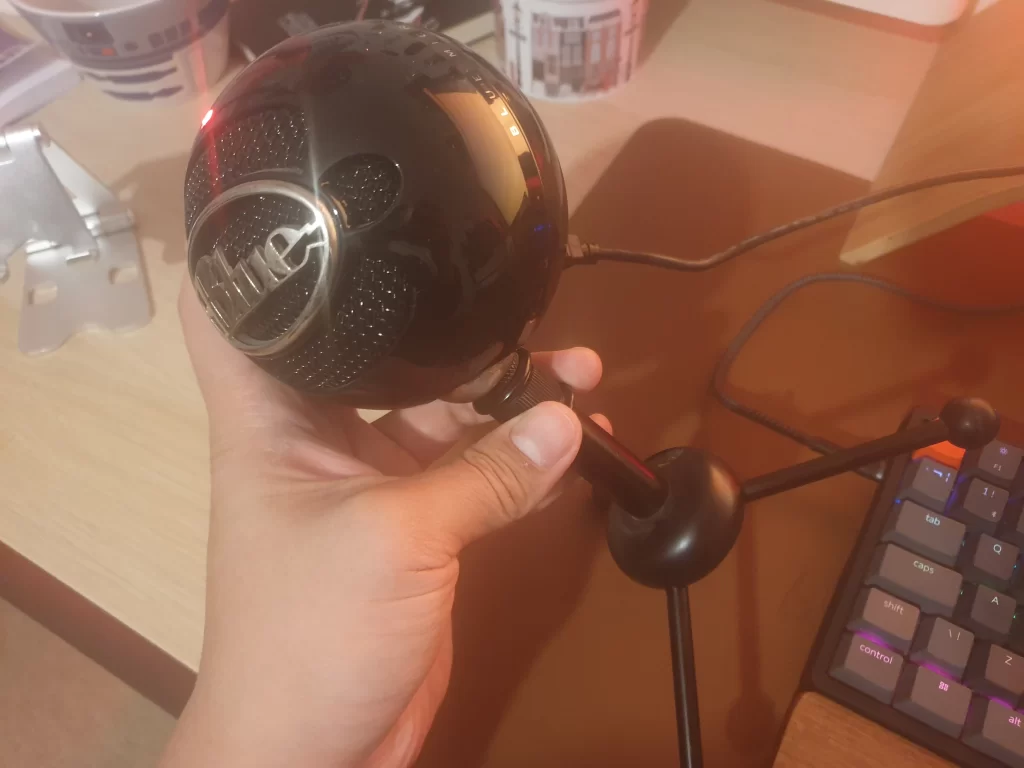
Tilt your microphone over and find the center screw underneath it that’s holding the tripod in place. Loosen the screw using a Phillips-head screwdriver. It may feel too firm initially, but keep trying, and it should loosen. An electric drill helps in this step if you don’t have the wrist strength to loosen the screw. Remember, turn it counterclockwise to loosen it.
3. Remove the Tripod Legs
With the screw loose, you should be able to detach the tripod legs from the central column. Do this by removing the part holding the screw and pulling the legs upwards and off the column. Be careful when handling the mic, and don’t press too hard when you’re detaching the tripod.
Replacing the mic parts can be expensive, and it might be more feasible to buy an entirely new microphone if it’s damaged.
4. Remove the Column
Untwist the bottom half of the column. You can do this easily by hand, but you’ll need to twist it firmly. If you’re having trouble gripping it to twist, I suggest holding the parts using a dry cloth.
Once the bottom half is detached, you can untwist the top half in the same way.
Now that you have completely detached the microphone from its tripod stand, you can mount it on any accessories you need to use in your project.
Additional Tips When Removing the Stand on a Blue Snowball
When you remove the stand on a Blue Snowball, I suggest keeping all the parts that you detached (the tripod, screw, column parts, etc.) in a safe place so that you can reassemble the microphone if needed.
Additionally, ensure that the Phillips-head screwdriver (or drill bit on your electric screwdriver) is appropriately sized. Otherwise, you risk damaging the screw, making it practically impossible to remove the tripod from the microphone. The screw is a standard ⅜” mounting thread.
If you’re having trouble twisting the column parts (bottom or top) to remove them, you might consider using pliers. However, keep in mind that pliers could scratch the surface of your microphone, which is why I suggest wrapping the column with a pot holder or cloth first.
Should I Mount a Blue Snowball on a Different Stand?
You might be thinking that the original tripod on your Blue Snowball is sufficient and that you don’t need to replace it with a different type. Well, that may be true for many, but it certainly isn’t true for all applications.
The original tripod on the Blue Snowball is a desktop tripod. Depending on your specific microphone settings, you may need to lean toward the microphone to get a high-quality, crisp, clear audio recording.
However, sitting at a desk in this position for too long might not be comfortable. So, for a long podcast session, the desktop tripod might not be the best choice for some users. As such, using an arm stand may be more suitable.
On the other hand, recording vocals sometimes requires the singer to be standing for better control of the diaphragm and to open the throat completely. The Blue Snowball is an excellent option for recording
vocals, but mounting it on a floor tripod helps you position yourself better so you can sing your lungs out. Camera tripods are lightweight options that have become popular in recent times. More and more people are using their phones in content creation– often using affordable microphones (such as the Blue Microphone) to ensure they have high-quality audio in their content.
Mounting the Blue Snowball on an Arm Stand
One of the most versatile ways to mount a microphone is on an arm stand. It’s also called a suspension boom or a boom arm. This configuration allows for total control of the mic’s position without causing discomfort for the speaker. You can move it in all directions as per your preference.
Using a boom arm means you don’t need to be sitting awkwardly to reach the microphone for a clear recording. All you need is a Phillips-head screwdriver (⅜”) or an electric tool with a drill bit of the same size.
Below are the steps to mounting the Blue Snowball on an arm stand:
- Remove the tripod stand by following the steps mentioned above.
- Reserve the screw (mounting thread) and the bottom half of the Blue Snowball tripod stand. You’ll need them to attach the microphone to the armstand.
- Take out the screw from the tripod base. You should have already loosened it, so you can simply push it out using your finger.
- Untwist the microphone clamp from your boom arm. You can do this entirely by hand.
- Using a Phillips-head screwdriver (or power tool), unscrew the hinge attached to the microphone clamp. You’ll need to attach this part to the microphone column parts. This screw won’t be fastened too tightly, so it’s easy to unscrew.
- Take the screw you took from the Blue Snowball tripod. Feed the screw through the hinge from your arm stand.
- Secure the bottom half of the Blue Snowball tripod column onto the other side of the screw.
- Fasten the screw into the column part using a screwdriver until it’s tight and secure.
- Connect the microphone ball of your Blue Snowball to the column part and twist it until it’s secure in place. Make sure that it’s fastened properly, but don’t overtighten it to avoid breaking any of the parts. The microphone is already mounted now.
- Reposition the microphone, ensuring that it faces the correct direction. You can also attach a pop filter, which is a popular option because the boom arm allows positioning the mic very close to your mouth.
- Use velcro strips to secure the Blue Snowball’s cable to the armstand. This will prevent the wire from moving around and getting stuck while repositioning. Keep the wire very close to the arm stand but leave a little leeway around the elbow to avoid damaging the wire.
This guide should work for most boom arms that are compatible with the Blue Snowball. Before you purchase an arm stand or begin to mount your microphone on it, make sure that it’s compatible. You can consult the user’s manual or contact the manufacturer to verify compatibility.
If your armstand is slightly different, look at the user’s manual for specifics on mounting a microphone onto it, but the basics should generally be the same. I found the InnoGear Adjustable Mic Stand on Amazon, which was very easy to install. It’s a durable model and comes with all the bells and whistles, such as a pop filter and a windscreen
.SaleInnoGear Mic Stand for Blue Snowball and Blue Snowball iCE Boom Arm Stand with Pop Filter Microphone Holders for HyperX QuadCast SoloCast Fifine Shure SM7B and Other Mic, Max Load 1.5 KG, Medium- Free Position Mic Arm: This professional microphone stand is fully adjustable in all parts with…
- Prolonged Lifetime: Unlike other microphone stands that have a knob on the arm shaft getting in the…
- Solid & Heavy-duty: High-quality steel material with super-strong springs and extra positioning hole…
Last update on 2025-07-19 / Affiliate links / Images from Amazon Product Advertising API
Mounting the Blue Snowball on a Mic Stand
For those who need to record vocals or even for recording music from various instruments, a floor tripod or mic stand is usually more suitable than the standard desktop tripod that the Blue Snowball comes with.
Mounting your Blue Snowball to a floor tripod is very straightforward, and it can be easier than mounting it on an arm stand. Because the Blue Snowball has a standard ⅝” hole at its base, it’s compatible with standard mic stands (floor tripods). Here’s what you need to do:
- Unscrew the microphone from the original tripod stand by twisting the top half of the tripod column. This means detaching the ball part of the mic from the rest.
- Thread the mounting screw of your mic stand (⅝”) into the hole at the base of your microphone ball, ensuring that it is fastened tightly.
Now you have a Blue Snowball microphone mounted on a standard microphone stand. You can adjust its height according to your needs and preferences, but floor stands are generally unsuitable for desk use. You might get away with sitting down while playing some instruments (such as a piano), but it’s not the best option for recording a conversation.
As you can see, mounting your Blue Snowball on a mic stand is by far the simplest mounting method you’ll find.
Mounting the Blue Snowball on a Camera Tripod
For those who don’t have access to a professional floor tripod, it’s a well-known trick that you can mount your Blue Snowball on a camera tripod instead. The microphone is very lightweight (under a pound or less than half a kilogram), so any regular camera tripod should work if you want to use your Snowball standing up.
All you need is an ⅝” inch (1.59 cm) screw adapter and a cold shoe mount. Here’s what you need to do:
- Unscrew the original tripod stand by twisting the top half of the tripod column.
- Replace the tripod stand with the adapter screw, ensuring that it’s fastened securely in place.
- Attach the cold shoe mount to the adapter screw.
- You can now stretch the cold shoe mount to the camera tripod or on top of your camera as it’s mounted on the tripod.
This trick comes in handy if you want to take videos using your phone but need better audio. You might be pleased to find out that Blue Snowball is also compatible with iPhones, iPads, and android phones. For that setup, you’ll need to use an adapter with a phone holder or other specific adapters.
So, using your phone, a cheap camera tripod, a couple of adapters, and of course, the Snowball, you’ll be equipped to film whatever you’d like and add the best audio you can come up with.
Do You Need a Shock Mount for the Blue Snowball?
A shock mount isn’t necessary for using the Blue Snowball, but you can get more out of this affordable microphone if you do use one. This is a type of mounting system where the microphone is suspended in elastic when connected to the boom arm or mic stand.
When connected to a shock mount, the Blue Snowball will register less background noise and less mechanical noise from moving the boom arm or mic stand. Also, you won’t need to remove the stand on the Snowball to attach it to most shock mount models, making installation a simpler process.
Also, shock mounts add durability to the Blue Snowball, which is why many prefer to use this complex mounting system over traditional methods that require unthreading and threading.
Final Thoughts
Removing the stand on your Blue Snowball is a relatively simple process. If you’re careful while unscrewing it, there’s no reason to worry about breaking the microphone. Remove the stand to attach your mic to an armstand or tripod, and use it more comfortably according to your preferences.
Make sure to keep any parts you aren’t using after mounting the Snowball because you never know when you might need to change its configuration and mount it differently.
Sources
- Home Music Creator: Recording Vocals Sitting Or Standing – Which Is Better?
- My New Microphone: What Is A Microphone Shock Mount And Why Is It Important?
- Expert Photography: What Is the Cold Shoe? (and How Can You Use It!)
- Camera Mount Threads: Lens mount Threads
- Engineering Choice: What Is Phillips Head Screwdriver?
Was this article helpful?YesNo -
How To Adjust Microphone Sensitivity 🎤
Adjusting microphone sensitivity in your home studio is essential, especially if you want to ensure that you don’t pick up unwanted background noises. As sensitivity cannot be changed during post-processing, you want to ensure you get the best recording with the right settings. So, how can you go about this process, and what should you keep in mind?
You can adjust microphone sensitivity in most operating systems like Windows, MacOS, and iOS. You can also use third-party apps like Audacity. Another way to change microphone sensitivity is to switch the polar pattern. Also, place the microphone at the right distance and use a pop filter.
Continue reading to learn more about how to adjust microphone sensitivity via software. Also, I’ll cover other techniques for tuning microphone sensitivity so that you get the best recording.
Tune Sensitivity in Third-Party Audio Recording Apps
The default sensitivity of the microphone you purchase doesn’t correlate to its audio recording quality. This only gives you an idea of the characteristics of the microphone.
Although you can’t change the microphone’s sensitivity as the manufacturer determines this, you can use third-party apps to tune what sounds you want to pick up while recording.
In this example, I’ll talk about Audacity, a popular audio recording software. Most audio recording software will have similar features, allowing you to change your microphone’s sensitivity.
Audacity comes with a feature called Sound Activated Recording. As the name suggests, the software will only start recording audio when it reaches a specific threshold.
The software will pause the recording if the audio level drops beyond the threshold. This essentially controls the sensitivity of your mic, allowing you control over what your mic records.
Since the feature is automatic, you won’t have any control over starting or pausing the recording.
If you’re interested in using this feature, here’s how you can do it on your device:
Windows
- Select Edit from the menu located on top of the screen.
- Click on Preferences and navigate to Recording.
- Under Sound Activated Recording, select the checkbox for Enable.
- Now drag the slider depending on your threshold.
MacOS
- Click on Audacity in the menu bar on top of the screen.
- Select Preferences and then go to Recording.
- Enable Sound Activated Recording by clicking on the checkbox.
- Change the Level as per your preferences.
You can also use effects like Noise Reduction. Keep in mind that this doesn’t affect the microphone’s sensitivity. Instead, it will tune out any noise in the recording based on the parameters you set.
For this effect to work, your recording must have a section with only noise. This helps Audacity create a sound profile and eliminate similar sounds from the recording.
Try Different Polar Patterns
Another great way to adjust the microphone sensitivity is to change the polar or pickup patterns. Some microphones only have a single polar pattern, while others allow you to switch them. For example, the Blue Yeti is a feature-rich microphone, as it comes with four polar patterns.
Logitech Creators Blue Yeti USB Microphone for Gaming, Streaming, Podcast, YouTube, Discord, PC, Studio Sound, Plug & Play-Silver- Custom three-capsule array: This professional USB mic produces clear, powerful, broadcast-quality…
- Onboard audio controls: Headphone volume, pattern selection, instant mute, and mic gain put you in…
- Four pickup patterns: Flexible cardioid, omni, bidirectional, and stereo pickup patterns allow you…
Last update on 2025-06-24 / Affiliate links / Images from Amazon Product Advertising API
If you’d like to learn more about Blue Yeti, check out this article. It covers everything you must know about this microphone.
Depending on what you choose, you can control what the microphone picks up during recording.
Cardioid
The most common pickup pattern in microphones is the cardioid. With this polar pattern, the microphone will only pick up sound coming right in front of it. If sound comes from other directions, especially the rear, the microphone will ignore it.
This pattern is an excellent starting point if you need to record a podcast or live music session. As microphones with these patterns will boost sounds the closer you get, you should pay attention to the distance from the source.
Some microphones also have a wide cardioid pattern. This combines the polar patterns of cardioid and omnidirectional. Now, if you have to record multiple instruments simultaneously, this pattern will work wonders.
There are also super cardioid patterns, which improve the microphone’s directionality, increasing the sensitivity of the microphone to sounds coming from the side. Sound rejection from the rear is also reduced.
Bidirectional or Figure 8
A figure 8, or bidirectional pickup pattern, will be sensitive to sounds from the front and rear. If there are sounds from the sides, it will reject them. This pattern is useful if you want to isolate sounds while recording in a room with multiple instruments. Also, it produces excellent results when you record acoustic guitars.
Omnidirectional
An omnidirectional pattern means the microphone is sensitive to sounds from all directions. When using this pickup pattern, ensure you only do so in an acoustically treated room. Otherwise, the output sound comes out muddled.
It’s also vulnerable to feedback if the sound comes from a public address (PA) system during recording.
Knowing the polar pattern of your microphone can make a significant difference when recording. For example, you can use it to your advantage to reject unwanted background sounds. One way to do this is to position the microphone such that it only picks up sound based on its polar patterns.
Check out: Best Blue Yeti Microphone
If you want to learn more about polar patterns, I recommend checking out this video. It explains some common pickup patterns without making them overly complicated:
Make Changes to the Operating System (OS) Software
Another way you can change the input sensitivity of your microphone is via the OS. One thing to note is that Android doesn’t have native support to change the microphone sensitivity. Fortunately, you can use third-party apps if you’re using your smartphone or tablet for audio recording.
Here’s how you can change the microphone sensitivity in various OS software:
MacOS
Note: If you’re using an older version of MacOS, System Preferences is the same as System Settings.
- Click on the Apple logo, which you’ll find in the menu bar located at the top of the screen.
- Select System Settings, which will open the Settings menu.
- Find and click Sound which you’ll see in the left sidebar.
- Under Output & Input, select Input.
- Choose the microphone you plugged into the device. Sometimes, the OS will use the in-built microphone by default.
- Move the slider in Input Volume as per your preferences. If you drag it to the left, it decreases the sensitivity of the microphone. Moving it to the right increases microphone sensitivity.
The input level below Input Volume will give you a fair idea about microphone sensitivity. You can use this to see whether the microphone picks up unwanted sounds. Once you’ve set up the Input Volume, you can take a recording and see if it has unwanted background noise.
iOS
- Open Settings on your iOS device and tap on Sounds.
- Find Change With Buttons and turn it on.
- Use the volume keys to change the microphone sensitivity.
Windows
- Press the Windows key to open the start menu.
- Click on the Settings icon, shaped like a gear. It is on the left portion of the start menu.
- Now, select System and then click on Sound.
- Under Input, select your microphone.
- Now click on Device Properties.
- When it opens the new menu, look and select the Levels Tab. Here, you’ll see a slider under Microphone.
- Drag the slider to the left or right, depending on how you want to set up your microphone.
An easier method is to select the sound icon from the taskbar. Select Recordings and double-click on the microphone you’re using for audio recording. Follow steps 6 and 7 above to change the microphone sensitivity.
Adjust Your Microphone’s Distance From the Audio Source
Where you keep your microphone in your recording studio makes a huge difference in the recording quality.
For example, your voice will be barely audible if you’re too far away. Depending on the polar pattern, it might also pick up unwanted sounds from the sides of the room. Finally, it increases the likelihood of echoes and reverberations in the recording, especially if your room isn’t adequately sound-treated.
When you amplify the recording to make your voice audible, you’ll notice that the quality doesn’t match your expectations.
Keeping the microphone too close to your audio source can also cause problems, as the microphone will pick up much more sound due to its proximity. For example, you could pick up breathing sounds in the recording.
There is no definite guide to how far or close you should keep the microphone from you. Ideally, the closer it is, the better the audio quality. You must experiment with different distances to know the best location.
Regardless, ensure the microphone isn’t more than a foot (0.3 m) away from you. Beyond this, typically isn’t optimal.
Also, you should avoid using the default stand for your microphone if you can’t increase its height to bring it closer to your mouth.
Fortunately, most third-party microphone stands will alleviate this problem.
Don’t Forget To Use Pop Filters
Pop filters are mandatory when recording audio in your home studio. For starters, it ensures that moisture from your mouth doesn’t touch the microphone, which can damage it in the long run and is simply unhygienic.
Pop filters also improve recorded audio quality. Without one, your microphone will blow out words where you have to pronounce letters like b and p.
These sounds are called plosives and are formed when you pronounce specific consonant sounds that require you to bring your lips together. Microphones find it challenging to deal with them.
Choosing a Pop Filter
There are plenty of options for choosing pop filters. Primarily, they use two materials – nylon mesh and metallic mesh.
Metallic mesh typically offers better quality materials and recording but is also more expensive. On the other hand, nylon is cheaper but will leave you with lower-quality recordings.
However, you should be careful while handling these filters, as you can break them easily.
By increasing your budget, you can go for metallic mesh variants. Generally, they tend to be smaller than nylon mesh. They’re also durable, giving them more longevity than their nylon counterparts.
If you can further increase your budget, I recommend getting a dual-layered pop filter. These types of pop filters use both nylon and metallic mesh.
You’ll have to install the pop filter in front of your microphone. Again, you’ll have to play around with the placement of the microphone as these filters affect the microphone’s sensitivity.
Try Foam Windscreen Covers
If you have a high-sensitivity microphone, there are several ways to tackle this issue. One of the most effective solutions is to use a foam windscreen. Covering your microphone with this accessory reduces how much background noise it picks up.
Although this can also help reduce the microphone’s sensitivity to plosives, this isn’t its primary use case. You’ll always be better off with a pop filter. You should keep in mind that the main use of this accessory is to prevent wind from affecting the audio recording. This makes it quite a useful accessory to have if you need to record outdoors.
The major difficulty of getting a foam windscreen cover is getting one that fits your microphone perfectly. So, ensure you size your microphone before getting one.
Tweak the Audio Compressor’s Settings
A compressor is a handy tool if you want to play with the microphone’s sensitivity with respect to its dynamic range. For example, you can boost lower frequencies if you speak in a lower voice. This ensures there is uniformity in your recordings, making a pleasant auditory experience for the listener.
However, this can come at the cost of boosting unwanted background noise. Make sure you tweak the audio compressor’s settings and perform a test run. This way, you’ll know what the recording sounds like and make changes to ensure you only boost the sounds you prefer.
Final Thoughts
As I’ve shown in this article, there are several ways to adjust the microphone’s sensitivity, even though it has been hardcoded into the design by the manufacturer. Software has powerful tools to change the sensitivity to eliminate unwanted background noise. Make sure you try all the methods I’ve highlighted to see which one works best for you.
Was this article helpful?YesNo -
How To Allow QuickTime To Access Microphone 🎙️
QuickTime is a vital app for many Mac users, and if you’ve recently bought a new microphone, you might wonder how to use it optimally. QuickTime cannot record audio content if it doesn’t have access to your mic, so how do you grant it permission?
To allow QuickTime access to your microphone (internal or external), connect your external microphone to your Mac, open QuickTime, and click “allow” when it asks for permission to access the microphone. If you previously declined QuickTime access to your microphone, change the settings.
In this article, I’ll explain how to let QuickTime access your internal or external microphone and how to troubleshoot this in case it doesn’t work. If you’re facing this issue, keep reading!
Connect Your External Microphone To Your Mac
The first step in using QuickTime successfully is to connect your external microphone (if you’re using one) to your Mac. This shouldn’t take more than a few minutes and involves the following:
- Locate the cable attached to your microphone.
- If there is no cable, check the box, and connect it to the microphone.
- Plug it into your Mac’s USB port.
Open QuickTime on Your Mac
If you’ve never used QuickTime on your Mac, you can access it as follows:
- Open the Finder icon at the bottom left corner of the sidebar.
- From the menu that appears, select Applications.
- Select the QuickTime player to open the QuickTime app.
Grant QuickTime Access to Your Microphone
Even though QuickTime is native to Macs, it’ll still ask you to allow video and audio recording (or anything else it needs to access from your device). If you’re opening QuickTime for the first time on your Mac, you can grant it this permission directly through the app.
After opening the QuickTime app, follow the steps below to grant it access to your microphone:
- In the QuickTime app, you should see a pop-up menu displaying various files on your Mac.
- Select Cancel to close the pop-up because you don’t need it.
- On the top left corner of your desktop, you’ll see a Files tab. Click on it.
- A menu of movie, screen, and audio recording options will drop down.
- Select any of these (at this stage, it doesn’t matter what you choose).
- A recording control panel will pop up on your screen.
- Click the record button on the control panel
- A second pop-up will appear, asking your permission to let QuickTime access your Mac’s built-in microphone.
- Click Allow to enable access.
- Close the app, open it again, and record whatever you want using your mac’s microphone.
Sometimes, the pop-up menu asking permission to access the microphone will appear when you launch the app. In that case, you may skip the above steps and click Allow immediately.
Change the QuickTime Settings If You’ve Previously Denied Access
If you’ve accidentally denied QuickTime permission to access the microphone when you first opened the app, you’ll need to enable these permissions in your Mac’s system settings manually.
If you don’t remember whether you allowed or denied QuickTime from accessing your Mac’s microphone, follow these steps:
- Open the QuickTime app using the app finder.
- Close the pop-up menu that appears, and click Cancel.
- Click on the Files tab on the top left side of your screen.
- Select movie, audio, or screen recording from the drop-down menu.
- When the recording control panel opens in front of you, you’ll see a yellow icon with an exclamation mark next to the record button.
- This icon indicates that QuickTime doesn’t have access to your microphone and that you must navigate to the settings to grant the app permission.
Here are the steps you need to follow to allow QuickTime permission to access your microphone through your Mac’s system settings:
- Click on the Apple logo on the top of your screen.
- Navigate to System settings.
- Go to Security & Privacy.
- In the pop-up that appears, scroll down, find Microphone settings, and click on it.
- On the right panel, several apps are listed with ticked blue checkboxes.
- You should also find QuickTime with an unchecked box here.
- Tick the box, and quit the Settings section.
- Open the QuickTime app again and check if the yellow exclamation icon is gone.
- If it is, find the downward-facing arrow button next to the record button and click on it.
- A menu will open, showing you various microphone input options.
- Check and confirm if the built-in microphone is selected.
How To Access the Built-In Microphone Through QuickTime
Once you’ve allowed the QuickTime app to access your Mac’s microphone, you can access your internal or external microphone through the app when you open the recording control panel.
From the same menu, you can also select which microphone input you want to use for your recordings, i.e., the built-in microphone, an external microphone, or your AirPods.
Here are the steps you’d need to follow to do this:
- Use the app finder to open your QuickTime app.
- Close the pop-up menu that opens.
- Navigate to Files in your screen’s top left corner.
- Select whichever type of recording you want to capture, i.e., movie, audio, or screen.
- A recording control panel will open.
- Click the downward-facing arrow next to the record button on the control panel.
- A new menu will open.
- Select the mic input you want for this recording, i.e., your built-in microphone or any other mic connected to your Mac.
- If you don’t want audio input during the recording, you can select the None option to disable your microphone during the recording.
If you want a visual walk-through of these steps, watch this helpful YouTube tutorial I found for you:
How To Connect Your External Microphone To QuickTime
If you want a high-quality audio recording, you’ll need to level up from your Mac’s built-in microphone and use an external microphone for your QuickTime recordings.
This isn’t because external mics are necessarily better than your Mac’s built-in mic, but it allows you to keep the microphone closer to your mouth without leaning into your laptop.
Connecting an external mic to your QuickTime player is simple enough; you must ensure that the external mic is connected to your Mac through a USB-C cable or wirelessly via Bluetooth. Then, open the QuickTime recording control panel to change the mic input to your external mic.
Here’s how to do it:
- Connect your external mic to your Mac.
- Click on the Apple logo.
- Navigate to Systems Preferences.
- Click Sound Settings.
- A pop-up menu will appear. When it does, select the Input tab.
- Locate your external microphone in the list, and click on it to use it as your mic input.
To get a visual sense of the steps mentioned above, watch this helpful YouTube tutorial I found for you:
External Mics To Use for Your Mac
When it comes to choosing a mic for your Mac, your options are virtually endless. If this has left you confused about which mics to use for your QuickTime recordings, below are two of my top recommendations:
- Blue Yeti Nano Premium (USB desk mic): Blue Yeti’s Nano Premium mic is one of the best options out there if you want a USB desk mic. It’s not too expensive but doesn’t compromise on quality. The product’s remarkable value for money and sleek (yet functional) design is the reason it’s one of my top recommendations.
Logitech for Creators Blue Yeti Nano USB Microphone for Gaming, Streaming, Podcasting, Twitch, YouTube, Discord, Recording for PC and Mac, Plug & Play -Blackout- Legendary Blue Broadcast Sound – Two Custom Mic Capsules Give Your Voice Exceptional Presence And…
- Blue Vo.Ce Software: Craft The Perfect Broadcast Vocal Sound And Entertain Your Audience With…
- Multiple Pickup Patterns – Cardioid And Omni Pickup Patterns Are Perfect For Pro Recording And…
Last update on 2025-07-19 / Affiliate links / Images from Amazon Product Advertising API
- Sony Compact Stereo Microphone (lapel mic): If you’re looking for a lapel mic, Sony’s compact stereo mic might be an excellent option for you. The mic is inexpensive and works like a dream. Note, though, that this microphone uses a 3.5mm headphone jack, meaning you may need to purchase a dongle separately to connect it to your Mac.
Sony Compact Stereo Lavalier Microphone ECMLV1,Black, Small- Omni-directional for high-qualitiy stereo sound pick up
- Included wind-screen to reduce wind noise
- 360-degree rotation Clip for freedom of attacment angle
Last update on 2025-07-19 / Affiliate links / Images from Amazon Product Advertising API
How To Connect Your AirPods’ Microphone To QuickTime
If you want to use your AirPods to record your QuickTime audio, you can do that by simply connecting your AirPods to your Mac and then choosing your AirPods as the mic input source in the QuickTime control panel.
Here are the steps you need to follow to do this:
- If this is the first time you’re connecting your AirPods to your Mac, bring the AirPods close to your Mac.
- On your Mac, click on the Apple logo and go to Systems Preferences.
- In the menu that appears, find and click on Bluetooth, and then turn it on.
- With Bluetooth enabled, put your AirPods into their case, bring them close to your Mac, and open the lid.
- Activate the pairing mode by pressing and holding the button on the back until the indicator light starts blinking white.
- On your Mac’s screen, you’ll notice a list of Bluetooth devices available to connect. Your AirPods will now appear on this list.
- Click on your AirPods to connect your AirPods to your Mac via Bluetooth.
- To ensure that your AirPods’ mic is being used, navigate to System Preferences again, and click on Sound.
- In the pop-up menu that appears, navigate to the Input tab and ensure that your AirPods are selected and that the mic volume is high. If the bar is down to zero, you won’t be able to record your voice through your AirPods’ mic.
- Open the QuickTime app and click Cancel on the pop-up menu that appears.
- Click Files on the top right corner of your Mac’s screen, and select the type of recording you want to do (i.e., video, audio, or screen).
- When the recording control panel appears, click on the downward-facing arrow button to the right of your recording button.
- In the drop-down menu, find the microphone section and click on your AirPods to use them as your mic input source for the recording.
Check out: Can You Track Reset Airpods?
How To Record Internal Audio On QuickTime
QuickTime doesn’t allow users to record their Mac’s internal audio by default during screen recordings. However, users have the option of recording internal computer audio while screen recording with the help of third-party plug-ins compatible with Macs.
This is perfect for users who want to use QuickTime to record game streams or make software tutorials, for example. This is because they would want internal audio for the game’s sounds and external audio to voice out their commentary or instructions.
Here’s how to use a 3rd party plug-in to record internal audio while screen recording using QuickTime (you can use any compatible 3rd party plugin you find for this):
- Download the 3rd-party plug-in (Blackhole and Soundflower are two popular options).
- Once the installation is complete, use the app finder to look for “Audio MIDI” in your Mac and open the app.
- A pop-up will open with two scrolling panes, and on the left pane, you’ll see your downloaded plug-ins.
- On the right pane, you’ll see the settings for the selected plug-in. You should also see the name of your downloaded plug-in listed in the left pane.
- Click on the + icon in the bottom left corner of the pop-up.
- Click Create Aggregate Device, and on the right pane, check the boxes for your installed plug-in and the built-in audio (or any other mic input you’re using).
- Click + again, and then Create Multi-Output Device. On the right pane, check the boxes for your installed plug-in and the built-in audio (or any other mic input you’re using).
- Close the pop-up, click the Apple logo, and go to System Preferences.
- Go to Sound, and navigate to Output.
- Select Multi-Output Device (the same one you created earlier), and close the settings menu.
- Open the QuickTime player, and click Cancel to close the pop-up.
- Navigate to Files, and select Screen Recording.
- A recording control panel will open, and you’ll notice a downward-facing arrow on the right of the recording button.
- Click on it to view your microphone options, and select Aggregate Device (the same one you created earlier).
- Start recording to get both internal and external audio!
I understand these steps might seem very complicated, so I’ve linked this YouTube tutorial for you:
Conclusion
If you want to include your voice input in your QuickTime recordings, you need to click Allow when it asks you permission to use your microphone.
If you accidentally clicked Don’t Allow when the first prompt popped up, don’t worry; you can always go ahead and change this in the microphone settings.
Once you’ve granted QuickTime permission to access your microphone, you must ensure that your microphone is the selected input before you start recording.
Was this article helpful?YesNo -
How Do Microphones And Speakers Work?
Have you ever wondered how microphones take in sound and play it through larger speakers to an audience? A lot of interesting stuff goes on in a blink of an eye when your mic and speaker setup converts sound into electrical signals and back into sound for an audience to hear.
Microphones capture sound waves and convert them into electrical signals through a sensitive coil in a magnetic field. Speakers do the opposite and convert electrical signals into sound waves through a large cone attached to a coil surrounded by a magnetic field.
In this article, I’ll break down the inner workings of microphones and speakers. I’ll follow the sound trail throughout your entire setup — from the moment your voice gets picked up by your microphone to its journey through the preamplifier, amplifier, and finally, into the output speakers.
Microphones and Speakers Explained
The ability to translate sound into electrical signals and back again is truly remarkable. Whether you’re talking on the phone, playing your favorite music in your car, creating music for your next album, or watching a movie on your laptop, you’re using microphones and speakers to make it all happen.
Both mics and speakers are necessities in a home studio. However, their applications are not limited here – you can find mics and speakers integrated into a single device, such as gaming headphones and police radios.
Microphones and speakers work together to record and play music, although separate technologies go into the development of each device. Microphones capture sound waves from different directions (based on the polar pattern) and convert them into electrical signals. Speakers then take those electrical signals and turn them back into sound waves that an audience can hear.
Below, I’ve stripped down the essential components of both speakers and microphones:
How Microphones Work
A microphone is a transducer that converts sound energy into electrical energy. Microphones are considered a vital determinant of the resulting sound quality. If your mic is poor quality, worn out, and damaged to the extent of producing harsh or distorted signals, that’s what you’ll get in the end speaker output.
Audio interfaces and DAW software can help eliminate some noise, but this can be difficult to achieve. As such, it is important to focus on getting a clean signal from your microphone in the first place.
To understand how a microphone works, we need to understand its various components. An average microphone consists of the following parts.
- A voice coil: Often made of copper or aluminum wire wound around a bobbin. When vibrated, it creates disturbances in the magnetic field.
- A permanent magnet: Creates a permanent magnetic field around the voice coil.
- A diaphragm: Receives sound and vibrates in a manner that corresponds to the speaker’s voice.
- Signal-carrying wires or transmitter: The electrical signals created by the movement of the voice coil around a permanent magnet are transmitted to the next processing phase by wires or sent to a receiver by a wireless transmitter.
- Other connections: Modern microphones offer a wide variety of connectors that allow you to connect your device to an amplifier, receiver, or computer. USB is one of the most popular connectors for home studio mics since it allows you to connect directly to the computer.
When you speak directly into the microphone, your voice changes the sound pressure, which moves the diaphragm attached to the voice coil. As the voice coil vibrates inside the magnetic field of the permanent magnet, it creates an electrical signal that matches your voice. The signal generated will vary according to the mic’s component quality.
The signal-carrying wires (usually XLR cables) carry the resulting signal to the amplification stage. Some microphones have a wireless transmitter that sends these signals wirelessly to a receiver located a couple of feet within the room.
That said, all microphones sound different due to their size and quality differences. Different microphones contain different transducer technologies, giving your mic unique sound properties. Also, the speaker’s unique voice contributes to the differences in microphones.
If you want to know more about how microphones work, you can check out this video.
When buying a microphone, ensure it can handle the sound pressure levels you’ll be recording or playing at to avoid unwanted distortion. An ideal microphone for your studio should also be adorned with the right features, such as noise cancellation, preferable pickup patterns, and high-quality audio.
With the rapid expansion of technology, there are many models of microphones that serve different purposes. For example, you can opt for wired microphones or wireless microphones based on your needs.
Choosing your ideal microphone is half the battle — with the right microphone, you can get the best possible quality input for the rest of the system to process. The next challenge is getting your speakers to produce an output that’s as identical to the input as possible, with as little noise as possible.
How Speakers Work
Like microphones, speakers are transducers, but in this case, they convert electrical energy into sound energy. Speakers take in an amplified signal and pass it through a voice coil to create sound.
To better understand how speakers work, let’s dive into the basic structure of a speaker:
- Speaker cone: Vibrates to create sound.
- Voice coil: The electromagnet attached to the diaphragm.
- Spider: Flexible mechanism that restores the voice coil to its original position between movements.
- Dust cap: Located at the center of the diaphragm, protecting it from dust.
- Permanent magnet: Creates a permanent magnetic field around the voice coil.
- Enclosure: Every speaker comes in an enclosure made of wood or plastic to prevent sound loss from wave cancellation.
Here’s a breakdown of how speakers convert electrical signals into sound waves.
- First, the mic-level signal goes into a preamp, where a series of transistors and vacuum tubes raise its voltage to a line-level signal. Preamps also add noise and distortion to the signal.
- The now powerful line-level signal travels to an audio interface, where it’s fed into your computer for processing. In this stage, you can add EQ, distortion, reverb, and echo through a digital audio workstation or other editing software.
- The edited soundtrack can be channeled to an amplifier through a quarter-inch (6.35 mm) jack. Unfortunately, most audio interfaces do not have an integrated amplifier. You need an external amplifier to boost the signal to a more powerful voltage that a speaker can play.
- The analog signal goes through your speaker’s voice coil, which turns into an electromagnet. The electromagnet moves back and forth within the permanent magnet surrounding it. Since the voice coil is attached to a diaphragm, both move at the same velocity, pushing the air around the diaphragm and creating sound.
As you may have guessed, several other components come into play before the sound gets to the speaker cone and is disbursed to the audience. Some of these components include:
- Preamplifier
- Amplifier
- Audio interface
- DAW and other editing software
Preamplifier
The mic signal is one of the weakest signals. It cannot drive a speaker on its own without being amplified. Microphone preamps can exist as standalone units, although they usually exist as elements of a much larger system, e.g., a mixer.
Amplifier
An amplifier’s main duty is to convert a line-level signal to a speaker-level signal or the more powerful signal that can actually drive a speaker. Amplifiers come in all shapes and sizes, with the most powerful ones putting out over 2000 watts per channel.
Amplifiers can also exist as standalone units (external amps), while others can be part of your receiver or mixer. Other types of amplifiers can also exist as software that can be downloaded and used on your computer.
Audio Interface
An audio interface is another must-have piece of equipment in your studio setup. Audio interfaces provide all the ports you need to hook up your hardware and instruments to your computer. However, its most important role is converting input into a format your computer can understand. A digital-to-analog converter or DAC helps in this task.
A digital-to-analog converter is a device that takes the soundtrack that’s processed and stored in binary in your computer and converts them into an analog waveform that a speaker can play. Audio interfaces are said to have much more processing power than your computer’s internal sound card.
Check out: What is an Audio Interface?
How Different Types of Microphones Work
No mic sounds the same as the other because they all come with different designs, components, and capabilities. The most popular microphones are dynamic, condenser, and ribbon microphones.
1. Dynamic Microphones
Dynamic microphones feature a rather simple design, with a voice coil suspended in a magnetic field, just like an average speaker. As sound hits the diaphragm, the mic’s voice coil captures it and sends it to the next stage.
Dynamic mics have wide applications in live performances and recording instruments in your home studio. They’re less sensitive than the condenser type. They also need no external power to operate.
One of the most popular dynamic mics is the Shure SM57 Dynamic Microphone (available on Amazon.com), which promises a world of versatility and quality audio for both home and professional studio applications. Its greatest strength is its ability to accurately capture instruments with minimal distortion and background noise.
Shure SM57 Pro XLR Dynamic Microphone – Professional Studio & Live Performance Cardioid Mic for Instruments, Recording for Drums, Percussion, & Instrument Amplifier Miking (SM57-LC)- EXEPTIONAL VOCAL PERFORMANCE – The SM57-LC delivers high-quality vocal reproduction, thanks to its…
- INDUSTRY STANDARD – The first choice for performers around the globe, the SM57 Dynamic Vocal…
- CLARITY & CARE – The uniform cardioid polar pattern reproduces every note as it was intended,…
Last update on 2025-07-19 / Affiliate links / Images from Amazon Product Advertising API
2. Condenser Microphones
Condenser microphones (also known as capacitor microphones) use a different kind of transducer to convert sound into electrical signals. Instead of a diaphragm and voice coil setup, they have two charged plates that move closer to or further apart, changing the circuit’s capacitance. To capture sound, condenser mics must maintain the charge on the two plates, which they achieve through phantom power or batteries.
If you record vocals a lot in your home studio, chances are, you’ve come across a condenser mic like the Rode NT1 (available on Amazon.com). This microphone yields clear, crisp vocals across the low, mid, and high-frequency ranges with minimal background noise.
SaleRode NT1 Kit,Black- Extremely Low-noise Large-diaphragm Cardioid Condenser Microphone with SM6 Combination Shock Mount…
Last update on 2025-07-18 / Affiliate links / Images from Amazon Product Advertising API
3. Ribbon Microphones
The technology behind a ribbon mic isn’t something new. These mics use an electrically conductive metal ribbon held by minimal tension to pick up sound. Like in dynamic microphones, the ribbon is also surrounded by a magnetic field.
When sound strikes the usually corrugated ribbon inside the microphone, it picks up the movement of the air particles surrounding it. Ribbon microphones have a figure-8 pickup (bi-directional) pattern, which allows them to pick up sound from two directions.
Ribbon microphones like the Beyerdynamic M 160 (available on Amazon.com) record warm, natural sounds for broad applications in recording vocals and as overheads for your percussion instruments.
Beyerdynamic M160 Double Ribbon Microphone – Hypercardioid, Wired, Wireless- Unique double ribbon microphone transducer with hypercardioid polar pattern
- Extended frequency response
- Excellent transparency and transient response
Last update on 2025-07-18 / Affiliate links / Images from Amazon Product Advertising API
Common Types of Speakers
Speakers can be classified by construction and the size of the driver (the component responsible for creating sound). How your speakers are constructed has a lot to say about the final output.
There are three popular types of speakers covering the full range of audio frequencies (low to high).
- Woofers: Are designed to produce low frequencies ranging from 50Hz-1000Hz. They draw more power from the amplifier than ordinary speakers. Larger amounts of power are required to move the massive speaker cone, which produces low-pitched sound.
- Mid-range speakers: These speakers produce lows that are not too low and highs that are not too high (between 250Hz-2000Hz). Mid-range speakers do not demand as much power as woofers, but they draw more from the amplifier than tweeter speakers.
- Tweeter speakers: Tweeters cover the highest frequencies that would be difficult to produce with larger speakers.
Another way to classify speakers is by the driver size; for instance, 6.5 or 6×9 speakers. Larger speakers are designed to take on the lower frequencies, while smaller ones produce higher frequencies.
A good speaker can make your music sound better and is essential for playing music. A good speaker is usually paired with a good amplifier and placed close to a wall or in an open space to deliver optimal sound.
Conclusion
That sums up how microphones and speakers work. If you’re starting your own home studio, it can be hard to know what to look for because you want to ensure the microphone or speaker you choose has the features you need and will last for years.
However, understanding how microphones and speakers work is invaluable in choosing the right ones for your home setup.
Was this article helpful?YesNo -
How Do I Test My Microphone? 🎙️
Every microphone leaves a unique signature on the quality of its output. If you’re a podcaster trying to melt your way into your audience’s hearts, a muddy, distorted recording won’t cut it. Similarly, a vocalist needs clear, crispy, and warm melodies, and testing your microphone is the first step to achieving any desired results.
You can test your microphone by analyzing its most important performance parameters, such as frequency response, distortion levels, dynamic range, proximity effects, and noise levels. These tests can be done with readily available online tools, sound settings app, and a professional audio analyzer.
Whether you find what you’re looking for in a microphone or not depends on how well you understand the mic’s performance parameters and how well you’ll use this knowledge in your recordings. In this article, we’ll shed some light on how to test your microphone for different applications.
Easy Ways To Test Your Microphone
Professional studios, manufacturers, and some stage performers test microphones with the best-in-class testing software and audio analyzers – which also happen to be expensive. While these methods are guaranteed to generate more accurate test results for better soundtracks, they might not apply to your situation (especially if you’re a passionate producer running a home studio).
These easy ways to test your microphone will help you get better recordings:
Your Computer’s Built-In Microphone Settings App
Before we go any further, I would like to point out that testing your microphone with your computer’s built-in settings will neither yield comprehensive results nor grant granular control over the testing process. Instead, it will only reveal whether your microphone is working or not.
That said, here’s how to test using your computer’s settings app:
Connect Your Mic to the PC
Simply plug your USB microphone into one of your computer’s open USB ports. XLR microphones will require a USB Audio Interface because they cannot connect directly to your computer. Another way to connect an XLR mic to a computer is through an XLR to USB adapter.
Visit Your Sound Settings App
Sound settings can easily be accessed on your Windows machine by typing “Sound Settings” on the search bar next to the Windows icon. Open the Sound Settings and navigate to your input devices.
On a mac, you need to go to System Preferences and open Sounds. Mac offers more control for the input, output, and sound effects. Since your microphone is an input device, you’ll need to open the Input tab and select your microphone from the listed options.
Play a Test Tone
Lastly, speak into your mic or play a test tone to check whether the microphone is working. A good microphone is marked by a moving blue bar.
If your microphone is not working, there are a couple of places to start. For instance, the mic could be turned off, or its gain brought down to zero. Check your microphone to ensure that it is turned on and that the gain is not set to zero. Otherwise, you may need to troubleshoot your computer and update outdated drivers to flush out any potential software issues.
An Online Microphone Test Tool
The internet provides a vast collection of online microphone testing tools. Essentially, these tools help you determine whether your microphone is in good working condition and, more importantly, whether it has been configured the right way.
Here’s how these tools work:
Search for a Suitable Tool Online
Different tools will offer different features. In my search for the most detailed and accurate results, I found a free online mic test tool mictests.com (https://mictests.com/check). However, more options, such as Webcam Mic Test (https://webcammictest.com/check-mic.html), are available with a simple Google search.
Allow Permissions on Your Browser
Most of the online microphone test tools will run on your browser, which means that you need to grant access to use the microphone. A popup notification appears on the top left side of your browser, where you can allow access.
Later on, after testing, you can undo the permissions by clicking the three buttons on the top right side of the browser window. Go to Settings > Privacy and Security > Site Settings. Locate the tool from the listed options and revoke or reset permissions.
Start the Test
Usually, the online mic test tool will automatically detect the microphones connected to your computer. They will also have a drop-down menu that displays all the available mics. Next, click the “Test my mic” or similar button to commence. Speak a few words into your microphone until the tool is done checking the device.
After running a simple test on my internal mic, here are some of the results I was able to obtain from mictests.com:
- Quality Rating: 731
- Microphone Name: Default – Internal Microphone (Conexant ISST Audio)
- Automatic Gain Control: yes
- Number of Audio Channels: 1
- Echo Cancellation: Yes
- Estimated Latency: 0.01
- Noise Suppression: Yes
- Sample Rate: 48000
- Sample Size: 16
- Volume: ???
While online mic test tools won’t provide professional-grade test results, they can help you identify your device’s strengths and weaknesses in a few minutes. If you’re not satisfied with the results, our next alternative will provide more professional results that can help you better understand your mic’s properties.
Use an Audio Analyzer
If you’re serious about the quality of your recordings, then an audio analyzer is a necessity you shouldn’t skip. Sound engineers, OEMs, and professional studios usually use audio analyzers to test a device’s sound quality. And as the name implies, an audio analyzer assesses the device’s performance across frequencies in the 20 Hz to 20 kHz range.
Some of the issues it helps pinpoint include interference, noise, and distortion.
Prerequisites for a Successful Test
Running your tests with an audio analyzer is a more complicated endeavor. As such, you need to keep the following things in mind:
- Read the user manual and product description. Before conducting any tests, it helps to know what type of microphone you have and its properties. Similarly, it is essential to know what type of analyzer you have (analog, digital, converter based). All this information can be found on the manufacturer’s spec sheet.
- Soundproof the environment. Essentially, you want to avoid noise interference from surrounding rooms. Find a quiet room free from external noise or soundproof an existing room. This also comes at a cost, but a quiet environment plays a significant role in achieving more accurate test results.
- Keep a healthy distance from the mic. Generally, microphones should always be kept close to your mouth, about 6-12 inches (152.4-304.8 mm) away while performing. This gives the best possible chance of capturing clear sound without the need to turn up the gain knob. While testing, try different distances, from 1-9 feet (0.30-2.74 m), both on and off-axis.
Listen carefully to the mic’s response with your powerful pair of mixing headphones.
Choose Your Analyzer
Analyzers come with varying capabilities, and the type of analyzer you choose will depend on your needs and budget. If you’re looking for a lightweight device that’s easy to carry and requires minimal setup, then the PAA3X Handheld Audio Analyzer should suffice.
This little device features a 61-band and 31-band real-time spectrum analyzer that promises to detail every little thing going on in your audio. Its accurate sound pressure level meter adds clarity to the mic’s sound capture abilities, which in turn, plays a significant role in producing suitable audio that’s not harsh to your audience. The refined results can be captured and saved on an SD card for later reference.
Complete Your Setup
Start by downloading and installing your audio analyzer software to your computer. Depending on the analyzer, you may need to download additional software to successfully conduct the test. Other analyzers will readily display real-time results on a built-in screen.
Next, connect the mic to the analyzer’s input port. Again, depending on your analyzer model, you may require an additional power supply for condenser microphones and external power amplifiers. Some devices will contain all the inputs and outputs integrated into them, meaning no extra hardware will be needed.
Setting up the test environment and wiring multiple devices together brings in a couple of challenges, such as not being able to find the right pieces of hardware for your setup. An integrated audio analyzer like the Audio Precision APx517B Acoustic Analyzer brings everything from the amplifiers, power supply, and analyzer together under one roof.
Select Your Microphone and Start Testing
Depending on the analyzer’s capabilities, you may be able to test more than one microphone at a time for a wide variety of parameters. A good analyzer sends a broad range of frequencies across the audible spectrum 20 Hz – 20 kHz through the system and awaits the outcome. It should be able to detect the mic’s signal level and ambient noise at minimum.
Although analyzers are mostly used in a professional setup, acquiring one for more comprehensive testing in your home studio can help shape your future recordings and improve your understanding of a mic’s limitations. However, this requires a little bit more experience with audio analyzers and an intimate understanding of the performance parameters in question.
Still not sure how to get started with an audio analyzer? This comprehensive YouTube webinar discusses everything you need to know about mic testing with the Audio Precision APx517B analyzer, from the test chamber considerations and source speakers to the appropriate software configurations:
Important Performance Parameters in Microphone Testing
Microphone testing involves measuring a broad scope of performance parameters to affirm that the microphone can live up to its specifications. In general, the most important parameters that should be tested include sensitivity, frequency response, noise, polar patterns, and dynamic range, to mention a few.
Frequency Response
The frequency response of a microphone is the measurement of the microphone’s ability to pick up audible frequencies. Most microphones have a flat or shaped frequency response. A flat frequency response has a relatively small difference between the highest and lowest frequencies it can pick up. Unfortunately, this doesn’t work so well for vocals.
An ideal frequency response for vocals starts from 80 Hz to 15 kHz. Bass and other low-pitched instruments, on the other hand, fall between 40 Hz to 9 kHz.
Sensitivity
Sensitivity is another performance parameter that describes how well a microphone picks up sound, or more precisely, how well it converts acoustic pressure into a voltage. Sensitivity varies by the type of microphone and the transducer technology used in its making.
Condenser mics are more sensitive than dynamic microphones. The more sensitive the microphone is, the less the need for signal preamplification. As such, you would use a less sensitive mic in a louder environment but switch to a more sensitive mic in a quieter environment with less ambient noise.
Polar Patterns
Polar patterns in microphones refer to how mics pick up sound. It is like the shape of the microphone and how it captures sound waves. The most common polar pattern is the cardioid pattern, which is shaped like a heart. This polar pattern is used for both vocals and instruments.
It picks up sound from the front of the microphone and rejects sound from the back of the mic. This helps reduce background noise and bleed from other instruments when recording.
Another polar pattern is the figure-8 pattern (bi-directional pattern), which is most sensitive at 0° and 180°. This pattern is used for recording two sources at the same time, such as a two-person interview. The bi-directional pattern captures sound from both the front and the back of the microphone, so you can record two sources at once.
Last but not least, we have the omnidirectional pattern that captures sound from all directions, which makes it great for recording a group of people.
Noise
Noise in mics is an unwanted sound that is picked up by the microphone, often caused by electrical signals from nearby cell phones and computers or environmental sounds. It is a common problem in audio recording and can be hard to control.
Often, noise in your system will manifest as a low-pitched hum and buzz or a loud, high-pitched hiss. Low-quality mics are more prone to noise, and they may pick up a wide range of unwanted frequencies in the background. For this reason, I recommend a high-quality mic that’s properly set up.
Conclusion
Testing your microphone is an important part of high-quality audio. With the tips highlighted in this article, you can ensure that your microphone is in tip-top shape and that you always get the best quality sound possible.
Was this article helpful?YesNo -
How Much Is A Studio Microphone? 🎙️
In today’s digital age, more and more people have learned the joy and excitement of audio recording. Whether you’re an experienced professional looking to upgrade your hardware or a hobbyist looking to make your first home studio, you will greatly benefit from a proper studio mic.
An entry-level studio microphone costs around $100, mid-range ones cost $200–$500, and high-end mics cost between 1000$ and 5000$. Their cost is determined by their type, features, and brand. Studio mics are typically more expensive than other mics because of their higher sound quality.
The rest of this article will highlight a few topics related to this question in greater detail, inducing how much you should pay for a good studio mic and what other accessories/equipment you need to start recording.
How Much Should You Pay for a Good Studio Microphone?
The enormous price range of microphones gives you various options, even when working with a strict budget. You can find microphones as cheap as $5, but studio microphones tend to be more expensive as they require higher sensitivity levels.
You can find entry-level studio mics for around $100 or even less if you’re starting out with recording and making content. While these mics will have minimal issues capturing sound, they tend to have fewer additional features and lower-quality components.
At this price range, you can’t go wrong with the Shure SM57 for instruments and the Shure SM58 for vocals.
Shure SM57 Pro XLR Dynamic Microphone – Professional Studio & Live Performance Cardioid Mic for Instruments, Recording for Drums, Percussion, & Instrument Amplifier Miking (SM57-LC)- EXEPTIONAL VOCAL PERFORMANCE – The SM57-LC delivers high-quality vocal reproduction, thanks to its…
- INDUSTRY STANDARD – The first choice for performers around the globe, the SM57 Dynamic Vocal…
- CLARITY & CARE – The uniform cardioid polar pattern reproduces every note as it was intended,…
Last update on 2025-06-23 / Affiliate links / Images from Amazon Product Advertising API
Shure SM58 Pro XLR Dynamic Microphone – Professional Studio & Live Performance Cardioid Mic for Vocals, Podcasting, and Recording (SM58-LC)- EXEPTIONAL VOCAL PERFORMANCE – The SM58-LC delivers high-quality vocal reproduction, thanks to its…
- INDUSTRY STANDARD – The first choice for performers around the globe, the SM58 Dynamic Vocal…
- CLARITY & CARE – The uniform cardioid polar pattern reproduces every note as it was intended,…
Last update on 2025-06-23 / Affiliate links / Images from Amazon Product Advertising API
If you’re looking to invest in your sound truly, you can find good quality mics between $200 and $500. This will ensure you get high-quality sound, components, and advanced features. This price point is the most popular and offers many options.
After you go above the most basic budget, it’s difficult to recommend a single best microphone. It depends on the type of voice or instrument you want to record. You may also simply like how some microphones sound compared to others.
The AKG Pro Audio C214 is a reliable choice for a mid-range microphone that offers clean and detailed sound. If you prefer a more vintage and warm sound, you can get the Warm Audio WA-87.
SaleAKG Pro Audio C214 Studio Grade Professional Large Diaphragm, Single Capsule, Vocal and Instrument Condenser Microphone with Rugged Aluminum Carrying Case. XLR Connector. Gray with Gold- Large-diaphragm Cardioid Condenser Microphone with 143dB Dynamic Range
- Switchable 20dB Attenuation
- Low-cut Filter
Last update on 2025-06-23 / Affiliate links / Images from Amazon Product Advertising API
Warm Audio WA87 R2 Large-diaphragm Condenser Microphone – Nickel- Large-diaphragm Condenser Microphone with 3 Switchable Polar Patterns
- 10dB Pad – Nickel
- Highpass Filter
Last update on 2025-06-23 / Affiliate links / Images from Amazon Product Advertising API
High-end studio microphones can cost you between $1000 to $5000 or even more. Microphones at this price point are considered professional grade and are used by industry leaders. This grade of microphones includes well-known brands like Rode, Neumann, AKG, Shure, and Audio-Technica. These mics will have the most features and superior sound quality.
Once you have a budget in mind, you still have to determine what type of microphone is best for you and which features you need. This will allow you to best the best value for your investment.
What Determines the Cost of a Studio Microphone?
Let’s take a look at the factors that affect a microphone’s price so you can buy one that exactly matches your needs.
Type of Microphone
All microphones are designed to convert sound waves into electrical signals. However, due to differences in their inner components, their level of performance and the overall cost can vary drastically from type to type.
Condenser Microphones
Condenser microphones are one of the market’s most sensitive and sophisticated mics.
Condenser mics are popular because they reproduce audio clearly and precisely. Due to this high sound quality, they are a staple of any proper recording studio.
Condenser mics use a two-plate system—where one moves while the other is fixed—to produce an electrical charge. When acoustic energy enters the device, it causes movement between these plates, creating electrostatic energy in a process called capacitance.
Their unique capacitor system greatly enhances these microphones’ sensitivity. With such a superior frequency and transient response, they are unmatched at capturing the intricacies of vocal recordings and soft instruments.
Although condenser microphones have particular components, they come in various designs and polar patterns. It is important to note that because of their higher sound quality, these mics tend to be more expensive than other types.
Large-diaphragm condenser microphones have a bigger diaphragm than average (1 inch/25.4 mm or greater). Their sizes give them unique advantages like low self-noise and a more colorful sound.
Self-noise refers to how much sound a microphone makes while in use. Due to their high signal voltage, Large-diaphragm condensers tend to be quieter than most mics. While this is an excellent quality, their biggest draw is the effect these mics have on audio recordings.
These microphones are designed to enhance incoming sounds, making them bigger, brighter, and more engaging. Their frequency response tends to be skewed and lacks consistent polar patterns. However, they use these traits to produce much warmer, fuller audio, making them a common option for recording studios.
Small diaphragm condenser microphones are another type of condenser mic with a smaller average diaphragm size (½ inch/12.7 mm or less). While not as quiet or colorful as larger condensers, their small size helps them pick more sounds clearly and consistently.
These microphones are the most sensitive condenser mic available. Their wide range frequency response allows them to pick up high and low-end sounds with incredible detail. This heightened sensitivity also boosts their transient response, making them perfect for recording instruments high in transients like keyboard, hand percussion, and string instruments.
Small diaphragm condenser microphones also have consistent polar patterns across various frequencies. This allows them to reproduce audio that is clear, natural, and precise. These mics are typically used when you want as accurate audio as possible. However, they are the most expensive type of condenser mic.
Dynamic Microphones
Dynamic microphones are the other primary microphone type. They’re popular for their internal and external reliability and durability.
Their resistance to high sound pressure levels and affordable price make them a popular option for recording live performances. They are also perfect for recording louder instruments like drums or when using amps.
The dynamic mic has a mylar diaphragm connected to a conductive coil that uses soundwaves
to move the coil and produce a charge. Their components are much less sensitive than other microphones, allowing them to record much louder noises in a broader range of environments.
Features
Some studio microphones have additional features like multiple polar patterns, switchable pads, or USB connectivity, which boost their functionality and sound quality. However, these features typically increase prices as well.
Some microphones offer multiple polar patterns, allowing you to find a device that accurately matches your recording style and needs. In simple terms, the polar pattern refers to the direction in which a microphone best captures sounds.
Polar Patterns
Polar patterns are typically found in 3 primary styles: cardioid, omnidirectional, and bi-directional, but there are more subcategories with specific specializations. Some mics (typically large-diaphragm condensers) even have patterns that you can change manually or in the presence of particular frequencies.
If you would like a more detailed look at polar patterns, this video does a great job of breaking down the differences.
PADs
PADs or Passive Attenuation Devices work as a limiter, regulating the signal levels that can reach your microphone.
When a microphone is exposed to sound at the maximum loudness it can handle, it can cause distortion and unwanted feedback in your recordings. This is mainly a problem with sensitive devices like condenser microphones, especially smaller ones.
Switching your pads on will raise the maximum sound pressure level your microphone can handle, while turning them off increases your mic sensitivity and influences its signal-to-noise ratio. These devices don’t require any additional power, so you can use them as you see fit.
Of course, the option to switch PADs on and off comes at an extra price.
High Pass Filters
High-pass filters perform a similar role to pads but with a more specific purpose. While pads are typically used to limit higher frequencies, a highpass filter or low-cut lets you set a cutoff point for low-end frequencies. If incoming audio falls under your set point, it won’t make it into the recording.
This eliminates extra noise from ceiling fans, air conditioners, or even the microphone itself. The cutoff frequency (or set frequency limit) is often fixed on microphones, but levels can vary from device to device, averaging around 120Hz.
Self-Noise
As mentioned previously, self-noise refers to the amount of internal sound produced by the mic itself. For quality sound recording, it is ideal to have little to no unwanted noise as possible. Lower self-noise is essential for capturing accurate and precise recordings.
Large-diaphragm condenser mics typically have the lowest levels of self-noise, but these levels can fluctuate between microphone types and devices.
Connectivity
Microphones come with two types of connection: XLR or a USB.
XLR mics are a staple of the recording world, seeing use from all types of creators, including musicians, radio hosts, podcasters, and actors. XLR uses a 3-prong connector to capture an analog signal. These versatile mics allow you to quickly switch between devices as long as they all use the same connectivity.
The biggest drawback of these kinds of mics is their reliance on an outside power source. Before they can be used, they need to be connected to a device like an audio interface, mixer, or field recorder, significantly adding to your overall operational costs.
USB mics are a newer type of mic with a focus on convenience. They maintain the same inner components as an XLR microphone without needing any additional equipment to get started. These mics allow you to plug directly into your laptop or PC and immediately start recording. USB mics also tend to be more affordable than XLR ones, but typically at the cost of quality.
Computers generally have issues recording multiple USB mics simultaneously, as they struggle to match audio to the appropriate microphone. However, USB microphones tend to be cheaper and don’t need any extra gear.
How to Choose a Microphone for Home Recording
Your ideal microphone may look different depending on the type of audio you plan to capture. Different kinds of recordings require varying sensitivity and sound quality levels.
Vocals
When recording vocals, you typically want to value high sensitivity. This enables your microphone to pick all the qualities and nuisance in your audio. This is why condenser mics, particularly large-diaphragm condensers, are so common for recording music vocals. These mics reproduce audio clearly while making it more lush and full of color.
The enhanced clarity also helps when recording streams, podcasts, and even voice acting, allowing vocals to come through cleanly with little feedback or self-noise. However, a dynamic mic could be more beneficial if you’re planning to record vocals paired with louder instruments.
Instruments
Recording instruments can be much more challenging as their recording needs vary significantly from instrument to instrument.
For example, acoustic guitars and other string instruments benefit from a sensitive mic like a small diaphragm condenser. In contrast, electric guitar requires a dynamic mic to handle their high SPL and amp usage.
A piano is the most versatile in terms of usable mics since it can use dynamic or condenser types. The piano has a wide range of sounds, from soft and melodic to harsh and percussive. You can choose a microphone depending on what sounds you want to enhance.
Drums are the most complex and expensive to fully record as different parts will require different kinds of mics. Recording loud hash snares will require a durable dynamic mic to avoid distortion. At the same time, high transient sounds from the overhead and hi-hats need a small diaphragm condenser for accurate reproduction.
Additional Accessories
When considering a studio microphone, it is essential to factor in the cost of any additional equipment you will need to operate it. This includes things like microphone stands, pop filters, shock mounts, studio monitors, and headphones.
- A microphone stand keeps your mic steady and adequately secured.
- A shock mount will reduce any excess noise and vibrations.
- Pop filters limit saliva and plosives from hitting your mic and are essential for close-up recording.
- Studio monitors (or speakers) are required for quality audio mixing. However, you can use headphones for a similar level of mixing quality.
- Deepening on your chosen mic, you might also need to purchase XLR cables and an audio interface or mixer.
Conclusion
The cost of a studio microphone varies greatly depending on microphone type, features, and brand.
However, before you make your purchase, you should decide your preferred microphone type, the features you need, your budget, and what you want to record.
Don’t forget to take into account any additional hardware you will need to purchase. After considering all these elements, you can estimate your next studio mic’s cost.
Was this article helpful?YesNo -
How To Allow Access To Your Camera And Microphone
Allowing third-party access to your camera and microphone is essential when joining online meetings, sending voicemails, or enjoying specific apps how they were supposed to. However, with so many different operating systems and devices circulating in the market, finding the camera and microphone access settings can sometimes be challenging. While the right approach will differ depending on these variables, it always follows a similar step pattern.
To allow access to the camera and microphone, you’ll first need to open your browser and go to the site or app you want to give access to. If a prompt pops up asking for your consent, choose “Allow.” Otherwise, go to your device’s settings and manage camera and microphone access from there.
If you want to learn about other methods, including how to allow third-party access to the camera and microphone from your mobile device, either Android or Apple, keep reading. In the following sections, I’ll take you through everything you need to know about the process while also exploring some tips on ensuring access is granted and some potential security concerns.
1. Open Your Browser
You can’t grant camera and microphone access without opening your browser, so go ahead and click on your browser of choice. Don’t worry because all browsers work similarly in terms of access settings. Then, try going to the website you want to grant mic and camera access to.
2. Respond to the Prompt That Appears
Once you’ve reached the site you’re trying to use, a prompt will pop up at the top of your screen asking if you consent to allow this type of access, to which you will have two options, “Allow” and “Block.”
Click on “Allow,” and your job should be done. However, it is still a good idea to check if the command has actually gone through. To learn how to do that, jump to the “How To Know When You’ve Allowed Access to Your Camera and Microphone” section below.
3. Go to “Settings”
Though your job usually ends at step two, sometimes no prompt comes up, either due to a glitch or just how the website was built. If that’s the case, you will have to change your access settings manually by going to your browser’s settings.
If you’re using Google Chrome, as 2.65 billion people do, you’ll want to click on the three vertical dots at the top right of your screen. From there, follow these steps:
- Go to “Settings.”
- Once you’re in the settings menu, go to “Privacy and Security.”
- Choose “Site Settings.”
- Click “Camera and Microphone.”
As mentioned, the approach will be similar no matter what browser you’re using, so keep the steps outlined above in mind, even if you’re on Firefox or Safari, for example.
4. Select the Desired Setting
When adjusting the “Camera and Microphone” setting, you will be able to review the sites you’ve granted access to and those you haven’t. You can also manage access to every third-party site from a single space. If you want to remove it, you can simply click on the trash can icon alongside the site’s name.
On the other hand, if you want to allow access to a site that has been blocked thus far, you can simply click “Allow” on the camera and microphone permission.
With that, your job should be truly done! As you can see, the whole process shouldn’t take too much time and effort.
How To Allow Access to Your Camera and Microphone on an Android Device
I will be discussing the process of allowing camera and microphone access to an Android device app, so if you’re an iPhone user, you can head over to the next section.
Before I do that, though, take note that if you are trying to grant access to a site in your browser from your mobile device, the process is the same as what I’ve outlined above: Three Dots > Settings > Site Settings > Camera and microphone.
However, if you’re trying to grant access to an app and not a website, here’s what you want to do:
- Open your phone’s settings.
- Go to “Apps.”
- Scroll until you find the app you want to grant microphone and camera access to and choose it.
- On the menu that appears, tap on “Permissions,” where you can see what type of access you’ve allowed or denied to the app.
- Find the camera and microphone permission setting, tap on it, and choose “Allow.”
You can repeat the same process for any other permission settings you want to adjust (either allow or block), which might include location and third-party tracking, for example. Now the apps of your choice will have access to your camera and microphone, allowing you to use them as intended.
How To Allow Access to Your Camera and Microphone on an Apple Device
If you are an iPhone or iPad user, you will be pleased to learn that the process of granting an app camera and microphone access is just as easy for you. Again, if it’s a site you’re looking to give access to, you can follow the approach provided at the beginning of the article.
However, if you want to allow access to the camera and microphone to an app instead, here’s what you should do:
- Open your phone’s settings.
- Scroll until you find “Privacy & Security” and click on it.
- On the menu that appears, choose “Camera,” “Microphone,” “Location,” or whatever type of access you want to give a certain app.
- A list should appear showing the apps that already have requested access to these features. You can toggle the permission switch to on or off.
Now you know how to allow camera and microphone access every time, regardless of what type of device or browser you’re using. However, as we all know, our phones and computers are very prone to glitches and technical issues.
So, how can you check and ensure your permission setting has changed?
How To Know When You’ve Allowed Access to Your Camera and Microphone
You’ll want to read the tips outlined in this section carefully. They can help you determine whether or not your command has gone through and also help you determine if an unauthorized third party has access to your camera and mic. Finding any suspicious activity is something you should definitely be aware of and resolve as soon as possible.
Here are some signs to look out for if you’re trying to determine whether an app or site has access to your camera and microphone:
- There is a small green light near your camera. Not all devices come with a camera indicator light. If yours does, make sure you’re aware of it. Newer phones and laptops come equipped with a small green light that turns on whenever the camera is in use, letting you know that a third party has access to it. However, even if your device doesn’t have it, a notification or prompt may pop up, letting you know that the camera is on.
- A microphone icon is visible on your taskbar. If you’re granting microphone access to a site, a microphone icon should be visible on the taskbar. When this type of permission isn’t granted, the mic icon can still appear, but it has a line going through it. Again, most systems and devices will notify you when your mic is in use either way, so always stay alert and carefully view any prompts that might appear.
- There is a small orange light. Newer iPhones are equipped with a small orange light (along with the usual small green light) to indicate that the microphone is being used. Again, you won’t find this feature on all devices, but if you have it, make sure to be aware of it at all times.
Apple, in particular, goes a long way to ensure the privacy of its devices, which is why its newer models have added safety features. Airpods, for example, are impossible to be tracked.
If you don’t want to rely on these easy-to-miss signs, you can always follow a more thorough approach to seeing which sites and applications currently have access to your microphone and camera. You can go to your browser or device’s privacy settings and view each third party currently accessing these features one by one.
Safety Concerns About Allowing Access to Your Camera and Microphone
Many users have understandable safety concerns when it comes to granting a third-party access to their camera and microphone. After all, they are making themselves vulnerable to a potential privacy breach.
That’s why it is important not to allow access to just any app or site that asks for it. Some might abuse this power, while others might be able to hack their way to your camera and mic without even asking and without you knowing.
The good news is that the most popular developers are trustworthy enough for you to allow camera and microphone access with some peace of mind. However, you’ll still want to go to App Store or Google Play and review a certain app, for example, before granting it any type of access to your device.
Another tip to keep in mind is to decide whether this type of access is actually necessary for the app or site to work as it was intended. For example, it’s reasonable to expect Instagram or Snapchat to ask for permission to access these features, as you’ll want to take photos and videos while using them.
On the flip side, it could be a possible red flag if, let’s say, a budgeting or recipe app is asking for permission. After all, why would such an app need camera or microphone access in order to function properly? So, it’s crucial that you must use your judgment when pondering whether to grant a developer access to your camera and microphone.
If you’re not sure or only want to allow camera and microphone access for a limited time, you can always switch the setting on and off as you like. However, be sure to actually remember to revoke access once you’re done using the app.
One of the best tips I can give you, though, is also the simplest one. There’s no better way to ensure no one has unauthorized access to your camera than to make it impossible for them to do so by taping your camera when you’re not using it.
If even Zuckerberg relies on this approach to ensure his privacy, why shouldn’t we? It can sometimes be near-impossible to see if your device is being hacked, so simplifying your approach and taking physical measures against these types of cyber attacks is generally your best bet.
Signs That Your Camera and Phone Are Being Accessed Without Permission
Here are some signs that might indicate your camera and phone are being accessed without your consent:
- The webcam or microphone light comes on, but you’re not using either of them.
- You hear unusual noises in the background.
- When you check your settings, you see that there are allowed features that you’ve never allowed yourself.
- Your data usage has notably increased even though your online time hasn’t.
For more information about knowing if your phone got hacked, check out this video:
If you notice any of these signs, I recommend taking your device to a professional to get to the bottom of the issue and resolve it immediately.
Final Thoughts
Though the process of allowing third-party access to your camera and microphone can vary depending on the type of device or system you’re using, it generally follows the same step pattern.
At first, either a prompt will pop up on your screen or you will need to access your device’s settings. Then, you can click or tap on the switch that allows third-party access to your camera and microphone. Alternatively, you can choose “Allow” on the prompt that appears.
Hopefully, the above guide can help you navigate even through the trickiest parts of the process.
Was this article helpful?YesNo -
Are USB Microphones Worth It?
Microphones are among the most critical and useful tools for any recording setup. Without a good mic, it is impossible to create high-quality recordings for making music, streaming, or podcasting, but good microphones are very complicated to use well, and they are difficult to set up correctly. This leaves us wondering if USB mics are a good alternative and if they are worthwhile using at all.
USB microphones are worth it. USB mics are somewhat expensive, and it can be challenging to find the right model, but if you need a mic for a small recording setup, if you need a mic that is simple to use and portable, or if you need a high-quality mic for podcasting, a USB mic is an ideal option.
USB microphones have a bad reputation for being poor-quality microphones that produce low-quality recordings, but microphone technology has progressed, and USB microphones have become viable options for multiple purposes. However, is a USB mic the right choice for you? Let’s find out!
Are USB Microphones Good?
USB microphones have a reputation for being low-quality mics, and this was a fair reputation a few years ago when these mics were in the early stages of their devolvement, but USB mics have come a long way since the earlier models, and these mics have become very high quality and very useful in many situations.
Modern, high-quality USB microphones are very good. These mics are made to compete with high-quality XLR microphones and are made to the same high standards as all high-end mics.
Several USB microphones are produced by some of the biggest, best-known, and most trusted names in the microphone industry, such as AKG, Shure, and Audio-Technica.
Modern USB microphones are designed to be used as easily as possible and produce the best possible audio quality. There is a wide range of high-end USB dynamic and condenser mics on the market, and most are far better than you may expect.
The audio quality produced by these microphones is very good, and most of the good USB mic models produce audio that is as good and clear as a good XLR microphone.
These mics have a built-in analog to digital signal converted and a built-in preamp, which allows them to be used with any computer with nothing more than a single cable.
Other microphones require complex external preamps and interfaces to work with computers, but USB mics produce the same audio quality with significantly more ease and convenience.
Modern USB microphones are very good, easy to use, and convenient. They can be used for vocals, instruments, spoken voice, and even for generating audio samples.
Are USB Microphones Worthwhile?
Modern USB microphones can be very good, provided you buy a good-quality microphone, but the added circuitry and hardware that these mics are made with can make them very expensive. This leads potential USB mic buyers to wonder if using these mics is even worthwhile or if they should rather use a typical XLR microphone instead.
USB microphones can be expensive if you want to get a good quality model, but the cost of a good USB mic is not more than the cost of an XLR microphone and all of the other hardware required to run it, operate it, and get it to sound good.
However, with that said, USB microphones are not the best option for everyone and should only be considered by those that can make the best use of them.
The advantage of buying a typical XLR microphone and the accompanying gear is that the external equipment can be used with any microphone. This means that once you have the gear to run an XLR mic, you can add to your setup over time by purchasing other microphones with different attributes.
Using a USB mic does not encourage you to add any other gear to your recording setup. If you want another mic, you will need to either spend the extra money on a different USB mic or pay up for an entire XLR mic setup.
However, USB microphones are very worthwhile for anyone who only wants to ever use one microphone, anyone who records simple podcasts, or anyone who travels with their gear.
If you use a laptop for recording and need to move your recording setup easily, there is no better microphone to use than a USB mic, as there is no extra gear required to use this mic type.
USB mics are also very worthwhile for anyone with a small recording setup, be it for making music or recording voices, as these mics require very little space to function.
A USB microphone is also ideal for a beginner who does not have the time to learn all of the necessary information associated with an XLR microphone setup, as USB mics are very easy to use and set up.
All of this means that there are certain individuals for whom a USB microphone is the ideal choice, making this mic type very worthwhile, and there are other people who can benefit more from using a wired XLR microphone recording setup.
Are USB Microphones As Good As XLR Microphones?
We have established that USB microphones can be very good, so long as they are a good mic made by a good manufacturer, but are these mics really as good as similar quality XLR microphones?
Modern USB microphones are as good as XLR microphones in the same class. There are very high-end XLR microphones that far supersede all USB mics, but a USB mic that is made to compete with a specific class of XLR mics usually matches the quality of that class, especially if it is made by a good microphone company.
For example, the king of podcasting microphones, the Shure SM7B, has a USB mic counterpart called the Shure MV7. This mic is made to directly match the SM7B and is even made with a nearly identical design.
This microphone is made specifically for podcasting and is not ideal for any other purpose that does not involve recording the spoken voice, but it excels at this purpose, matching the SM7B in quality and style.
There are other USB microphones that are specifically made for recording instruments and singing voices, and there are a few that are made to be as versatile as possible.
However, all of this is to say that good-quality USB microphones are as good as similar-class XLR microphones, so long as you buy the right mic for your purposes and if the mic is made by a trustworthy company.
What Are The Advantages Of Using A USB Microphone?
USB microphones have their weaknesses, but there are several advantages to using this type of microphone over regular mics.
The main advantage of using a good USB microphone is the fact that these mics require no other hardware to run.
Every good USB microphone has a built-in analog-to-digital converter (A/D converter), which allows the mic to connect directly to the computer without using an interface. This built-in A/D converter converts the analog audio signal of a microphone into a digital audio signal that can be used by a computer.
These mics also have a built-in preamp to boost the microphone’s signal to usable levels. If you plug a mic without a preamp into a computer, the output signal of the mic is so low that it can barely be used at all, but the inclusion of a preamp enables the computer to easily use the audio signal from the mic.
These two features of the USB microphone combined with the portability of these mics, their versatility, and the easy functionality of the microphone type are the most important advantages of using these microphones.
USB Microphone Pros And Cons
There are some great advantages to using a USB microphone, but there are also some significant disadvantages in certain circumstances.
Let’s take some time to identify and explore the pros and cons of using a USB microphone, especially in comparison to using an XLR microphone, to help determine if these mics are worthwhile using.
The Pros Of USB Microphones
The pros of using a USB microphone include the following:
- USB microphones are very easy to use.
- USB microphones require no additional equipment to use.
- USB microphones are highly portable.
- USB microphones require very little space to use well.
- USB microphones can be very high quality.
- USB microphones are often made for specific purposes.
- USB microphones are easy to set up.
- USB microphones are ideal for small recording setups.
- USB microphones are ideal for a single-mic recording setup.
- USB microphones are good for beginners.
- USB microphones require no special training to use.
- USB microphones are good for multiple purposes.
- USB microphones can be compatible with mobile devices such as smartphones and tablets.
- USB microphones have built-in A/D converters and preamps.
The Cons Of USB Microphones
The cons of using a USB microphone include the following:
- USB microphones can be very expensive, depending on the model.
- USB microphones can be poor quality if they are not a high-end model.
- USB microphones are not very versatile.
- USB microphones leave no room for upgrades or gear expansion.
- USB microphones may have trouble with certain operating systems depending on the brand.
- USB microphones do not always fit on mic stands or boom arms.
- USB microphones can be unreliable at inconvenient times.
- USB microphones cannot be used without a computer and a DAW.
Which USB Microphones Are Best?
There are several excellent USB microphones available right now, but the fact that there are so many means that it can be challenging to choose the right one.
For this reason, here is a short list of some of the very best USB microphones available right now:
- The Shure MV7 USB Podcast Microphone.
- The Blue Microphones Yeti Multi-Pattern USB Microphone.
- The Audio-Technica AT2020USB+ USB Microphone.
- The AKG Lyra Multi-Pattern USB Microphone.
- The Razer Seiren Mini USB Condenser Microphone.
- The Behringer Bigfoot All-In-One USB Studio Microphone.
These are some of the best USB mics available, but it is always best to do your own research and find the mic that best suits you regarding the features that you are looking for, the ways you will use your mic, and the budget that you have to spend on the mic.
Is A USB Mic A Good Option For You?
We now arrive at the most important question regarding USB microphones: should you use one?
Using a USB microphone is perfect for many situations, including streaming, video conferencing, podcasting, recording voices and instruments, and even for gaming, but these mics are not well-suited for everyone.
If you need a microphone for a basic purpose, such as for streaming or video conferencing, then a USB microphone is the best option because it is the simplest way to get high-quality audio with the least amount of gear and setup requirements.
If you travel a lot and want to have a microphone with you on the road, then a USB microphone is also the best option in this situation. These mics are also great for a beginner recording setup and are excellent for podcasting.
This means that if you travel with gear, record podcasts, or need good audio for calls, a USB mic is the best option for you.
However, if you want a more comprehensive setup, then an XLR microphone is a better choice. USB microphones leave no room for gear upgrades, and they do not encourage you to learn more about your gear to get the most from it.
These mics are also not the best option for recording instruments, and they can leave something to be desired when trying to achieve a highly dynamic sound.
If you want the best possible audio quality, it is easier and cheaper to get it from an XLR mic, but if you want convenience and portability, then you should be using a USB microphone.
Check out: Best ASMR Microphones
Conclusion
USB microphones are better today than they have ever been before. These mics are becoming so good that they rival XLR mics of the same quality in almost every class. These microphones are worthwhile for anyone who needs a simple-to-use microphone or for anyone who wants a portable mic for a moveable recording setup.
There are no other microphones that can do what a sub mic is capable of, so if you need one, nothing else will fulfill the same purposes. USB mics are worthwhile, and there are very high-quality models available for those who need them.
References
- https://www.sacbee.com/reviews/usb-mic/
- https://www.reviewgeek.com/82087/should-you-buy-a-headset-or-a-usb-microphone/#moka_anchor_conclusion
- https://www.careersinmusic.com/best-usb-microphone/
- https://blog.streamlabs.com/usb-vs-xlr-microphones-for-game-streaming-734c1791cdbc
- https://www.r-tt.com/technology-articles/usb-condenser-microphones.html
- https://www.reddit.com/r/audioengineering/comments/3ccd2k/can_someone_eli5_why_are_usb_mics_bad_quality_but/
- https://homestudioexpert.com/7-reasons-why-usb-mics-are-considered-bad-quality/
- https://music.stackexchange.com/questions/31719/is-the-quality-of-a-usb-microphone-worse-than-using-a-conventional-mic-through-a
- https://www.sweetwater.com/insync/usb-microphone-buying-guide-2/https://www.bestproductsreviews.com/best-usb-microphone?targetid=dsa-19959388920&matchtype=&device=c&campaignid=18708476341&creative=630719999458&adgroupid=142814614756&feeditemid=&loc_physical_ms=1028684&loc_interest_ms=&network=g&devicemodel=&placement=&keyword=$&target=&aceid=&adposition=&trackid=us_all_top_1_1&mId=407-132-4411&trackOld=true&gclid=Cj0KCQiAtvSdBhD0ARIsAPf8oNnCR9zQZ5v8IilNmBfA_lIs8qPDROIklJ-pdGF9G0fbNLp6hiobYv8aAjloEALw_wcB
Was this article helpful?YesNo